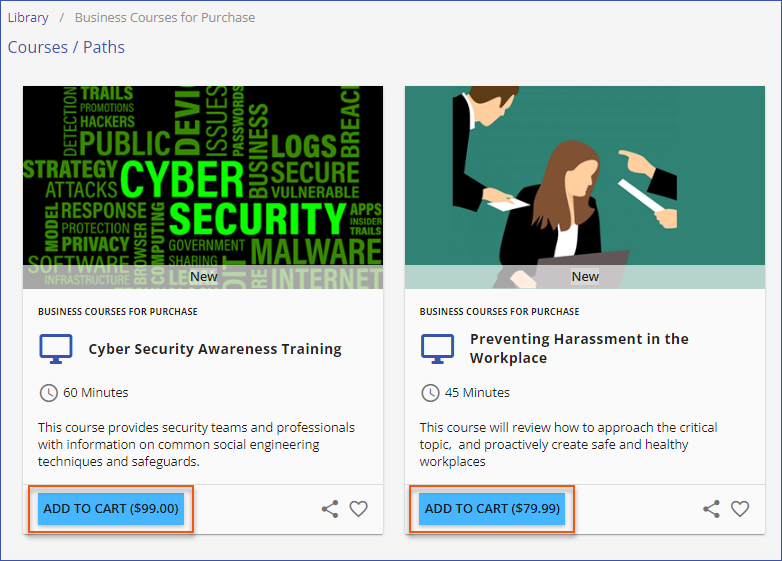
The eCommerce module is a fully integrated solution that allows clients to place courses/paths for purchase on the LMS. Once eCommerce is enabled by a company administrator in the LMS, all courses/paths will have the option of associating a cost and licensing model with them. Courses/paths configured for eCommerce will display a price and an Add to Cart option on the course/path card.
Company Administrator
Enable and Configure the eCommerce Module
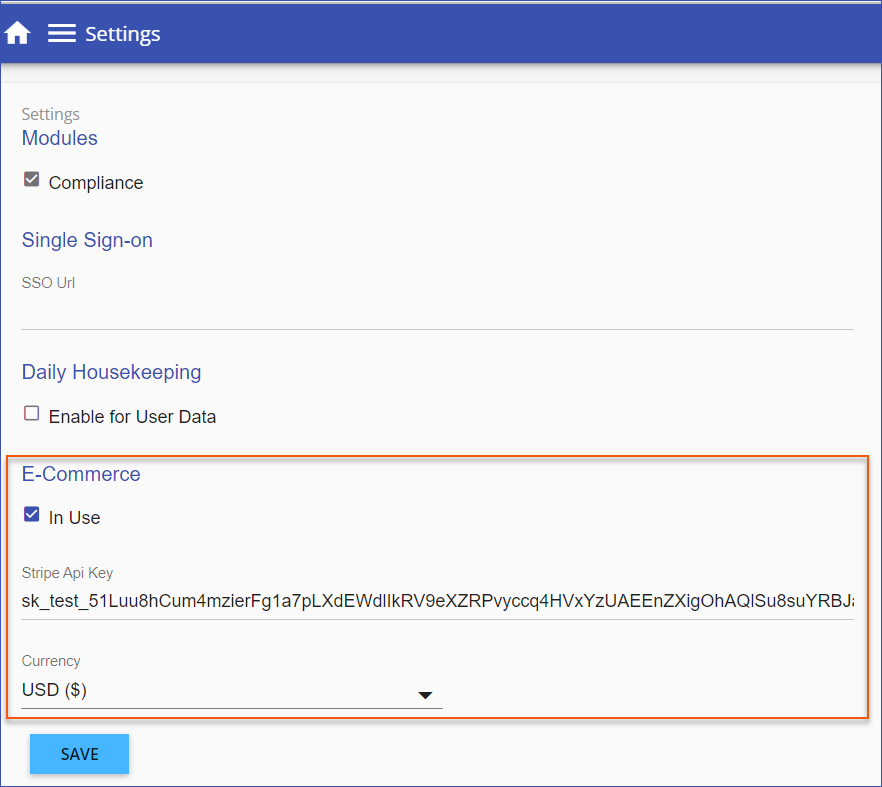
Company Administrators can enable and configure the eCommerce module via Settings > 3-dot option > Settings > eCommerce.
1. Check In Use to enable eCommerce.
2. The eCommerce module integrates with your Stripe payments account. Specify your Stripe Business Account's unique Stripe Api Key.
3.Select your preferred transaction Currency to be used for transactions.
4.SAVE.
Set Course/Path Eligibility for ECommerce
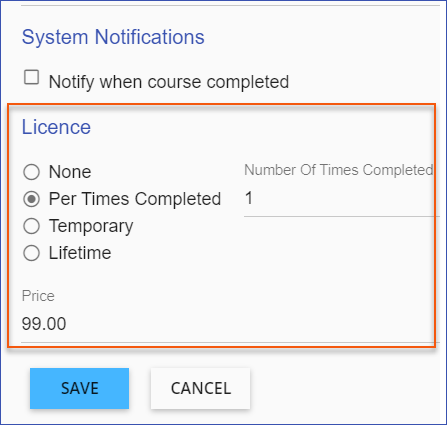
Once the eCommerce module is marked In Use, two fields are added to Course/Path Detail pages that will determine the course/path eligibility for purchase:
License is used to specify how the course/path will be licensed for use after purchasing. Set the licensing as follows:
•None if the course/path is not available for purchase. Note: this is the default for all courses/paths.
•Per Times Complete if the course/path can be completed a set number of times per purchase.
•Temporary if the course/path will have unlimited access for a certain number of days.
•Lifetime allows unlimited access to the course until you revoke the license.
Price establishes the price of the course/path based on the currency selected for the LMS and the licensing model selected for the individual course/path.
View Payments
LMS Company Administrators can view a listing of all purchases made in the LMS via Settings > 3-dot option > Payments. Administrators can revoke a license from the Payments page to make a course accessible again if a license has expired and it is deemed necessary. Refunds and payment adjustments must be done manually at this time.

Purchaser (User)
Purchase a Course/Add to Cart
An eligible course/path with pricing and licensing specified includes an Add to Cart button on the course/path library card. The purchaser clicks this button to add the course/path to their Shopping Cart.
Go To Cart
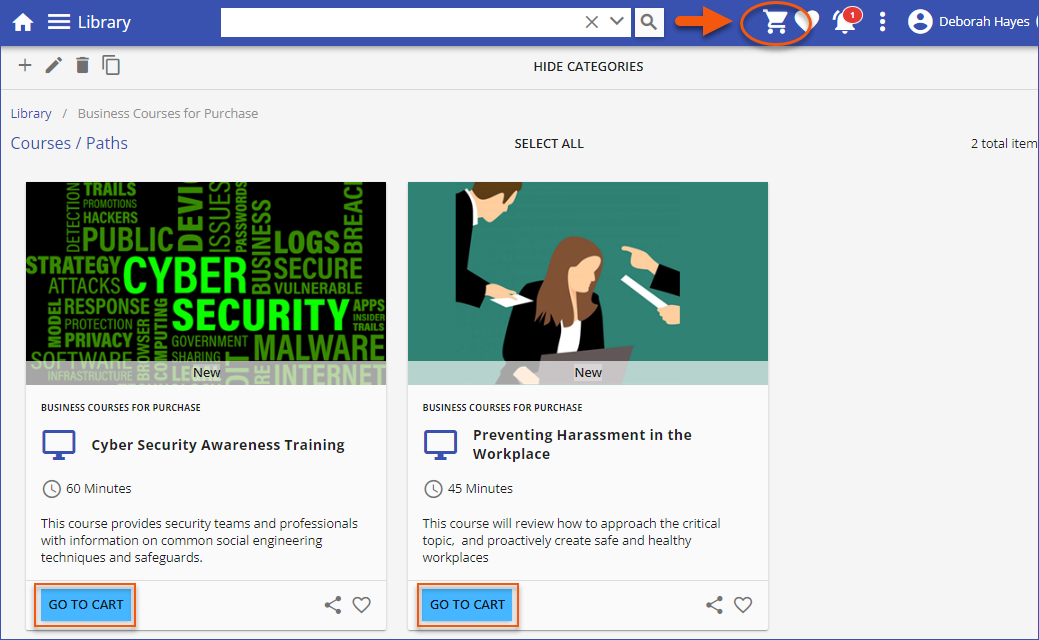
When eligible course(s)/path(s) are added to the Shopping Cart the Go To Cart button displays on the course/path card in the library. Purchasers click the Go To Cart button or the Shopping Cart icon in the top right of the window to view the contents of their Shopping Cart and proceed to the Checkout.
The Shopping Cart lists items added to the cart for purchase and displays the Order Summary. Purchasers select the Checkout button to continue to Stripe Checkout and to complete the purchase.

Checkout
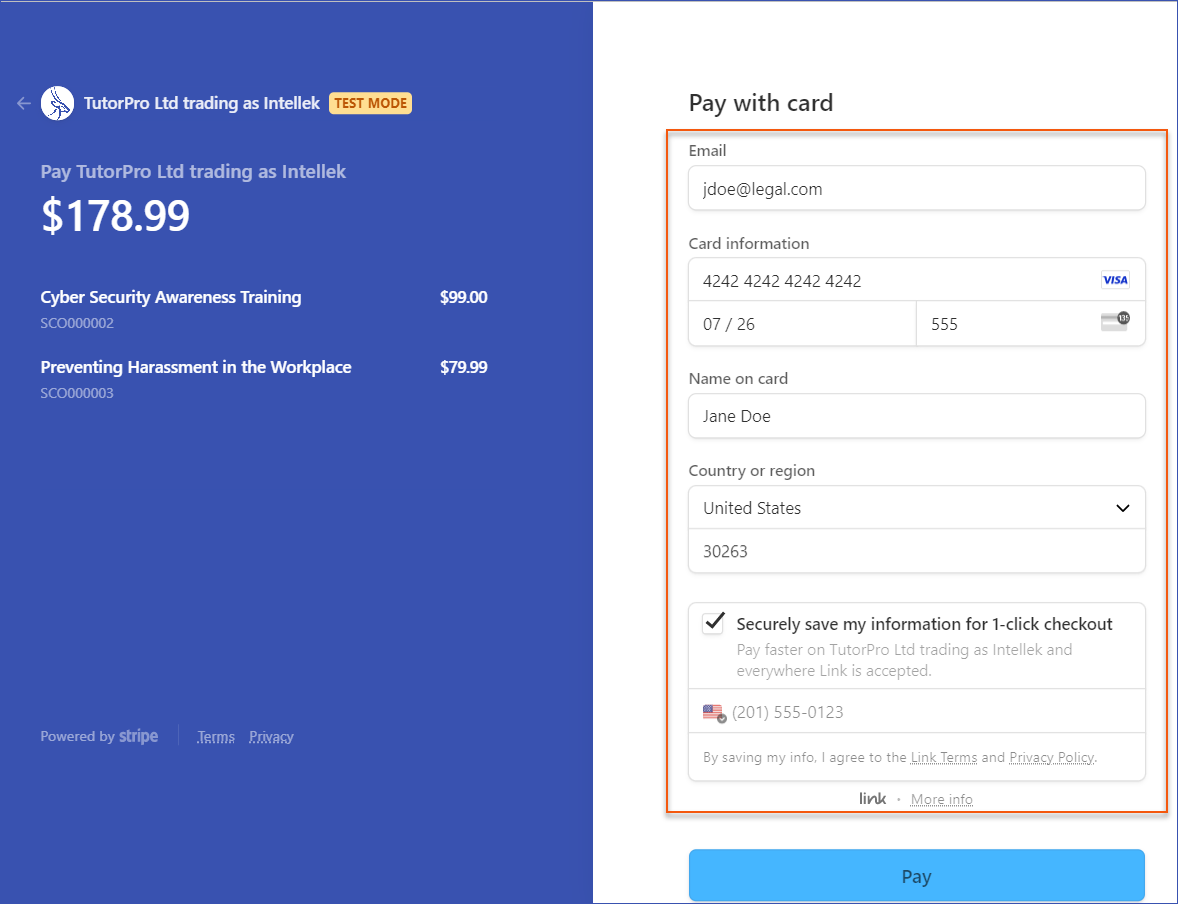
Enter all payment details including Email address, Card information, Name on card, Country or region and zip code. Click Pay when ready to proceed.
Following successful payment, the payment confirmation page displays and the purchased course(s)/path(s) are now available to the purchaser through the LMS library.
