LMS Administrators can enable CE Manager (CEM) compliance tracking for any course type (General, SCORM, AICC, or Scheduled) that should be included in CE Manager reporting. When creating or editing a course, select the "Tracked in CE Manager" option on the Course Detail page. Once enabled, a corresponding course or session is automatically created in CE Manager.
Coordinated Workflow between Intellek LMS and CE Manager
After an LMS course is replicated in CE Manager, a corresponding course entry is created. A CE Manager administrator must then assign the appropriate compliance license and credits to each course or session created in CE Manager. Once this information is configured, it is synchronized back to the LMS through an overnight process. LMS users can then launch or enroll in the LMS course or event.
Important! LMS users will not be able to launch courses or enroll in events marked as "Tracked in CE Manager" until this synchronization is complete. |
Tracking LMS Courses in CE Manager
1.Navigate to the Library page.
2.Add  a new Course (General, SCORM, AICC), or Edit
  an existing Course.
3.On the Course Detail page, select Tracked in CE Manager.
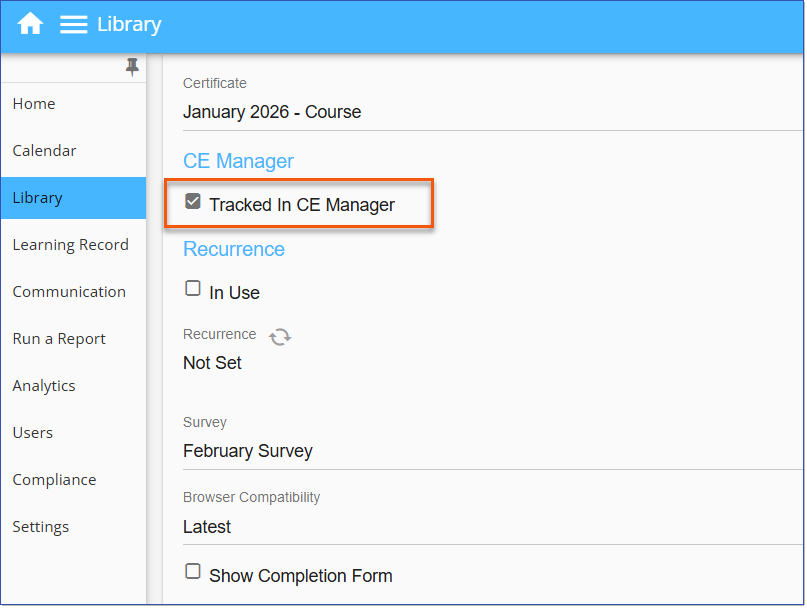
Course Detail - Tracked in CE Manager
4.Complete any remaining course details as needed, then select Save. A corresponding course is automatically created in CE Manager.
5.The CE Manager administrator must then assign the appropriate compliance license and credits to the course in CE Manager.
6.When Users complete the learning in the LMS, their completed statuses are shared and updated in CE Manager.
Tracking LMS Events in CE Manager
Events can be tracked in CE Manager by checking the option at the Scheduled course level in the LMS:
1.Navigate to the Library page.
2.Add a new Scheduled course or Edit an existing one.
3.On the Course Detail page, check Tracked in CE Manager.
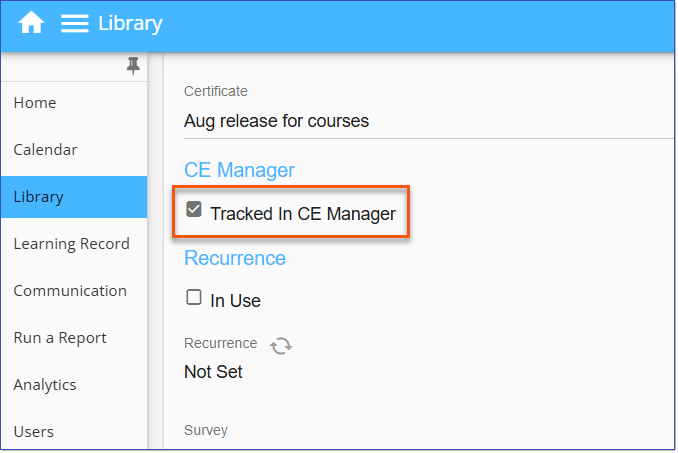
Scheduled Course Detail - Tracked in CE Manager
4.Complete any remaining course details as needed, then select Save. A corresponding course is automatically created in CE Manager.
 Note: The CE Manager administrator assigns the appropriate compliance license and credits to each of the sessions (locations) once they are generated in the LMS Calendar.
Adding Events to the Calendar
When events are added to the Calendar for a scheduled course that is "Tracked in CE Manager", the LMS sends event location details to CE Manager, and a separate session is created in CE Manager for each location. For example, if an LMS Event includes both a New York location and a webinar, two sessions will be created for the course in CE Manager. A CE Manager administrator must then assign the appropriate compliance license and credits to each session before users can enroll in the Event.
For example, below is a Scheduled course replicated in CE Manager, with '0' sessions listed:
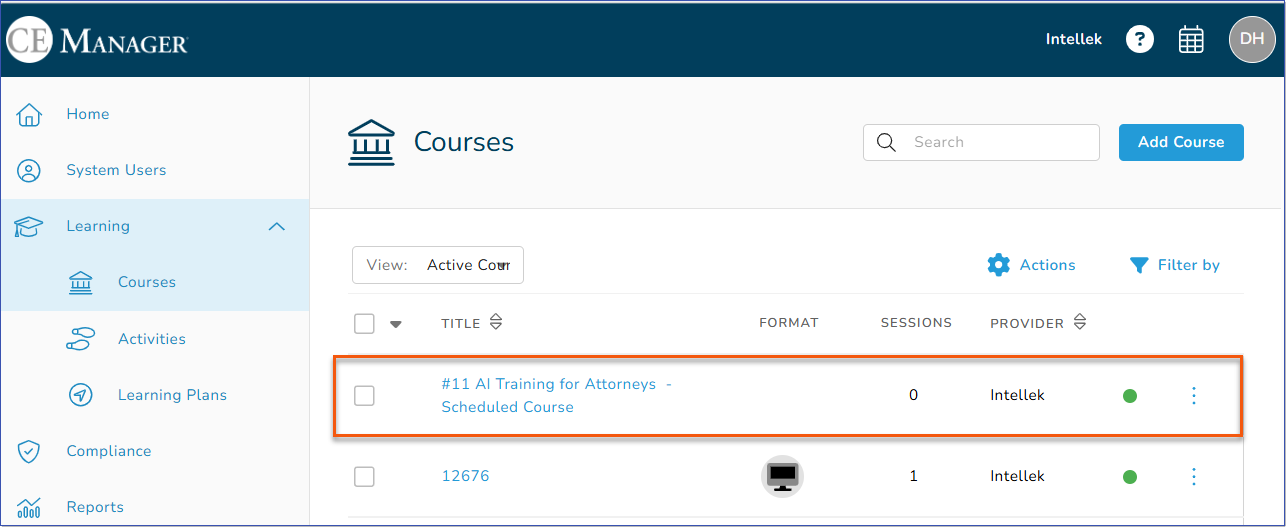
Once the Event is is added to the LMS Calendar and replicated, CE Manager creates sessions for location(s), i.e. New York  and webinar
  .
.

Course/Event Completion Tracking
When a user completes an LMS course or attends an LMS Event and is marked as finished, the LMS sends the completion records to CE Manager via API for compliance tracking and reporting. The user's email address is used to match records between the LMS and CE Manager; data is synchronized only when the email address matches exactly in both systems.