The LMS supports integration with Litera CE Manager (CEM), enabling seamless tracking, validation, and reporting of learning activities completed in the LMS for compliance purposes within CE Manager.
CE Manager Integration Overview
The LMS now supports integration with Litera CE Manger (CEM), enabling seamless tracking, validation, and reporting of learning activities completed in the LMS for compliance purposes within CE Manager. What Each System Does:•The LMS manages learning delivery and the user experience. Users access and complete their learning within the LMS. When a user completes a course or attends an event that is "Tracked in CE Manager", the LMS captures and sends the learning history to CE Manager •CE Manager manages compliance requirements, accreditation, and credit tracking. Once data is received from the LMS, CE Manager applies credit allocation, license validation, and compliance rules. Compliance records are updated accordingly and all compliance reporting and audit capabilities are managed entirely within CE Manager. This integration ensures a seamless flow of course and event completion data from the LMS to CE Manager, minimizing duplicate administrative effort. How the Integration Works:•The LMS communicates with CE Manager through secure API endpoints to exchange learner training data. •The user's email address is used to match records in both systems. User learning data is synced when the user exists in both the LMS and CE Manager and the email matches exactly in both systems. •The LMS sends course details (course identifier, completion status), event (session) details (attendance completion) to CE Manager. •User accounts and personal data are not shared between the LMS and CE Manager. Background Processing and Data IntegrityThe integration between the LMS and CE Manager uses automated checks to keep data consistent. It regularly validates course and session mappings, identifies missing or out-of-sync records, and retries or resolves issues when possible. This helps ensure accurate and reliable data transfer between systems. Roles and ResponsibilitiesThe LMS and CE Manager administrator responsibilities for this integrated system can be itemized as follows: •LMS: Administrators manage course and event creation and management, learner experience, and completion tracking. •CE Manager: Administrators configure compliance, credit assignment, compliance validation, regulatory reporting, and audit tracking. CE Manager Integration Configuration and Setup:To enable CE Manager integration within the LMS, administrators must complete the following: •Provide the API credentials and endpoint configuration details to Intellek. Note: These details, unique to your CE Manager instance, are obtained by the client from CE Manager and provided to Intellek. •Activate the integration toggle. 1.In the LMS, go to the Settings page and enter the CE Manager API details provided by CE Manager: : oAdmin Email (CE Manager administrator email) oAPI Client ID oAPI Client Secret oAPI Authorization URL oAPI Base URL 2.Check the 'CE Manager In Use' box. 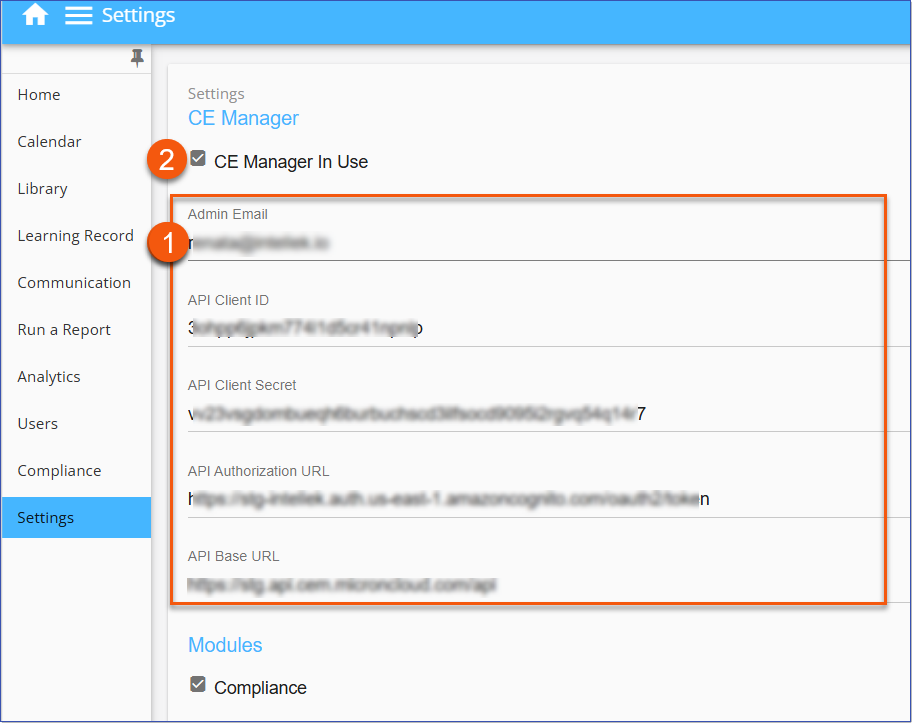 Settings > CE Manager Settings
|
CE Manager Compliance Integration Course and Event Setup
LMS Administrators can enable CE Manager (CEM) compliance tracking for any course type (General, SCORM, AICC, or Scheduled) that should be included in CE Manager reporting. When creating or editing a course, select the "Tracked in CE Manager" option on the Course Detail page. Once enabled, a corresponding course or session is automatically created in CE Manager.
Coordinated Workflow between Intellek LMS and CE Manager
After an LMS course is replicated in CE Manager, a corresponding course entry is created. A CE Manager administrator must then assign the appropriate compliance license and credits to each course or session created in CE Manager. Once this information is configured, it is synchronized back to the LMS through an overnight process. LMS users can then launch or enroll in the LMS course or event.
Important! LMS users will not be able to launch courses or enroll in events marked as "Tracked in CE Manager" until this synchronization is complete. |
Tracking LMS Courses in CE Manager
1.Navigate to the Library page.
2.Add  a new Course (General, SCORM, AICC), or Edit
  an existing Course.
3.On the Course Detail page, select Tracked in CE Manager.
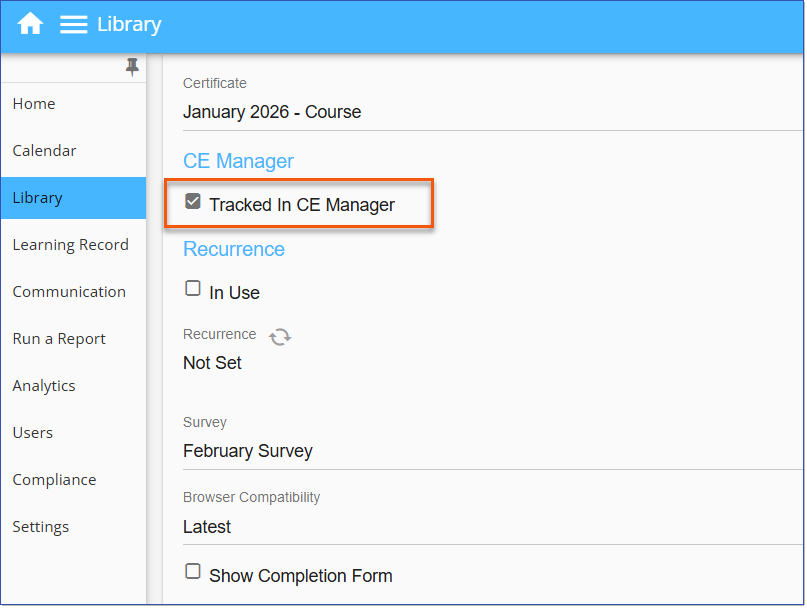
Course Detail - Tracked in CE Manager
4.Complete any remaining course details as needed, then select Save. A corresponding course is automatically created in CE Manager.
5.The CE Manager administrator must then assign the appropriate compliance license and credits to the course in CE Manager.
6.When Users complete the learning in the LMS, their completed statuses are shared and updated in CE Manager.
Tracking LMS Events in CE Manager
Events can be tracked in CE Manager by checking the option at the Scheduled course level in the LMS:
1.Navigate to the Library page.
2.Add a new Scheduled course or Edit an existing one.
3.On the Course Detail page, check Tracked in CE Manager.
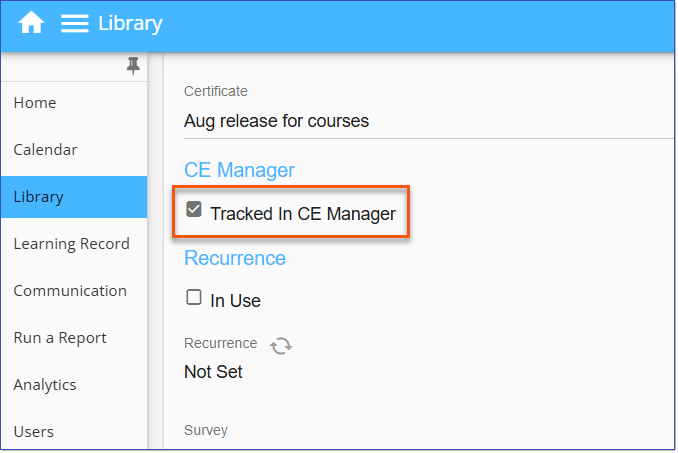
Scheduled Course Detail - Tracked in CE Manager
4.Complete any remaining course details as needed, then select Save. A corresponding course is automatically created in CE Manager.
 Note: The CE Manager administrator assigns the appropriate compliance license and credits to each of the sessions (locations) once they are generated in the LMS Calendar.
Adding Events to the Calendar
When events are added to the Calendar for a scheduled course that is "Tracked in CE Manager", the LMS sends event location details to CE Manager, and a separate session is created in CE Manager for each location. For example, if an LMS Event includes both a New York location and a webinar, two sessions will be created for the course in CE Manager. A CE Manager administrator must then assign the appropriate compliance license and credits to each session before users can enroll in the Event.
For example, below is a Scheduled course replicated in CE Manager, with '0' sessions listed:
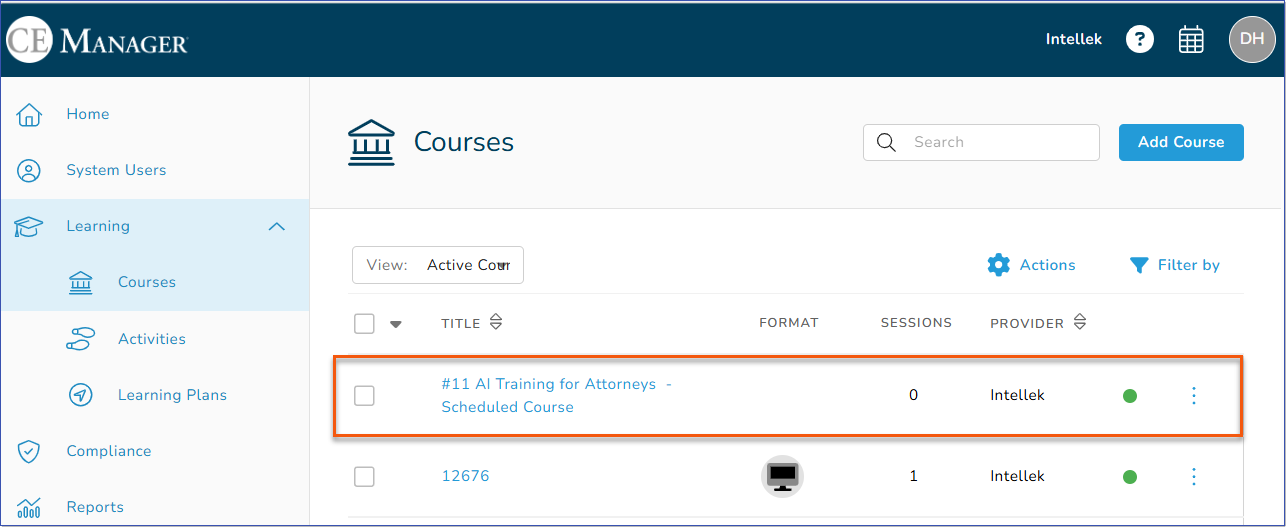
Once the Event is is added to the LMS Calendar and replicated, CE Manager creates sessions for location(s), i.e. New York  and webinar
  .
.

Course/Event Completion Tracking
When a user completes an LMS course or attends an LMS Event and is marked as finished, the LMS sends the completion records to CE Manager via API for compliance tracking and reporting. The user's email address is used to match records between the LMS and CE Manager; data is synchronized only when the email address matches exactly in both systems.