Password Requirements
LMS v4 introduces enhanced security measures for password storage and management. Passwords are now hashed in the database, ensuring they are not visible to anyone, including developers and LMS administrators. The password field has also been removed from the User Detail page. For LMS instances using the Username and Password Authentication method, Users must use the Forgot Credentials link to reset their password.
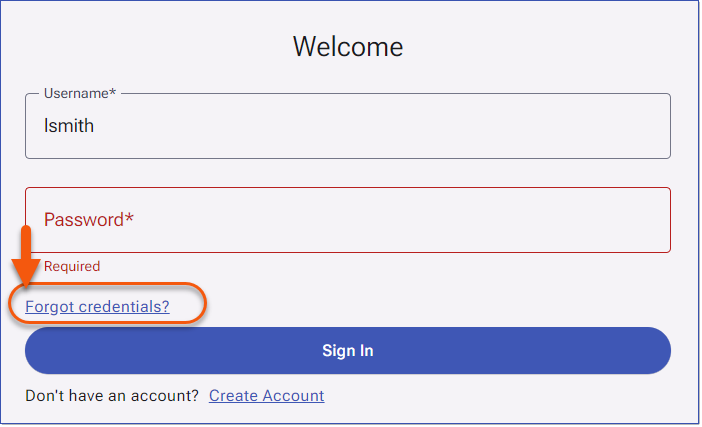
Forget Credentials
For LMS instances using Single Sign-on Authentication method, the password field is not used in the database and will also not be visible on the User Detail page.
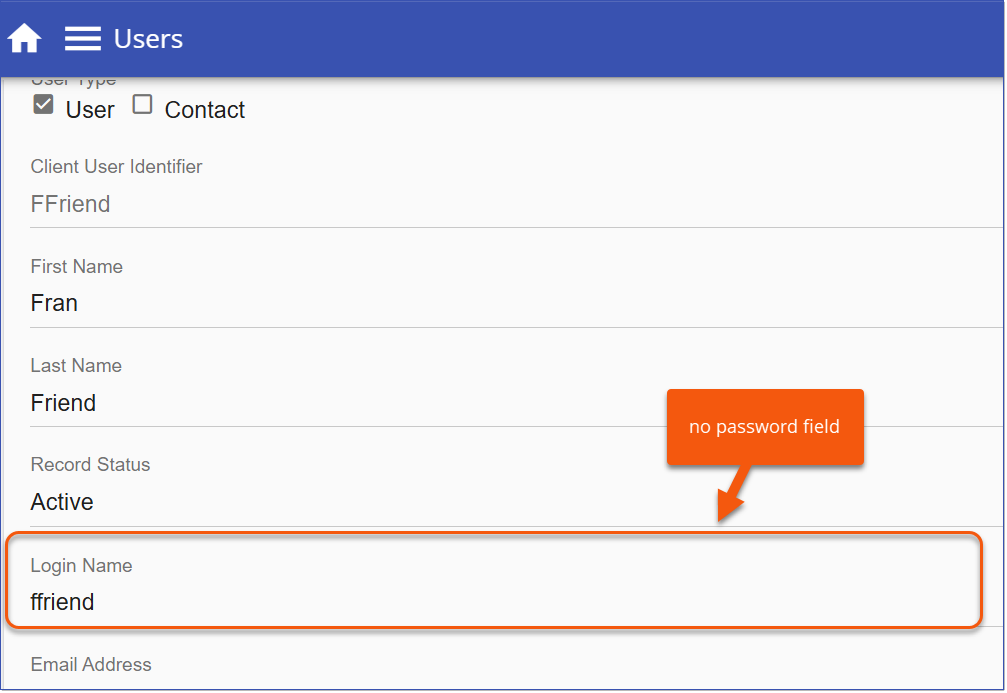
User Detail Page - No Password Field
LMS V4 Password Requirements:
•Minimum of 12 characters
•Must include at least one uppercase letter
•Must include at least one lowercase letter
•Must include at least one number
•Must include at least one of the following special characters: ! @ # $ % ^ & *
 Note: When moving from LMS v3 to LMS v4, existing LMS account passwords will remain unaffected until the next time a password is changed.
LMS V3 Password Requirements:
•Maximum of 20 characters
•Can contain any of the following: A-Z (upper & lower), 0-9, ! # $ % & ' * - . ? @ _ ~ £
Forgot Credentials
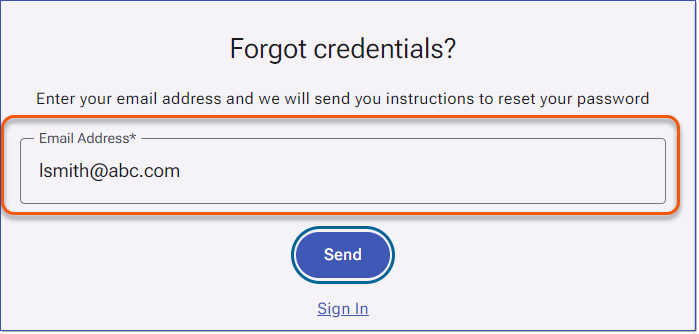
For clients using the Username and Password authentication method, the Forgot credentials link allows Users to recover their login information if they have forgotten it. LMS administrators no longer manage or reset passwords in LMS v4. For clients using hybrid authentication (Username and Password and SSO), the Forgot credentials link is still available; however, it only resets the LMS password, not the SSO password. How to Reset an LMS Password1.Click the Forgot credentials link to open the Forgot credentials page. Forgot Credentials 2.Enter your email address and click the Send. If an active user with a matching email address exists in the LMS, the system will send a password reset email using the Account Recovery email template.
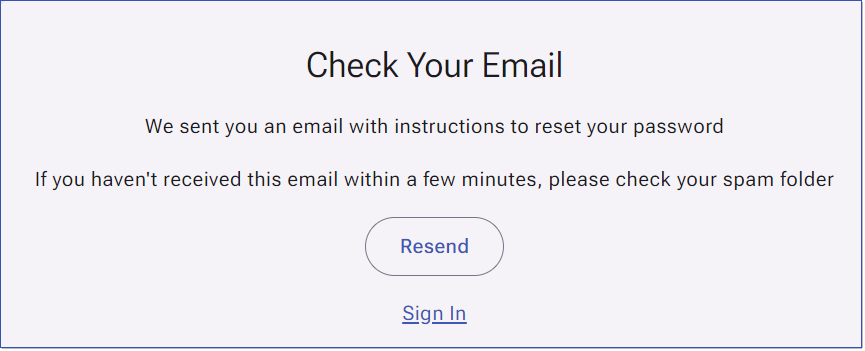
3.The Check Your Email page appears, confirming the email has been sent. If you do not receive the email, click Resend. It is recommended to wait five minutes before resending.
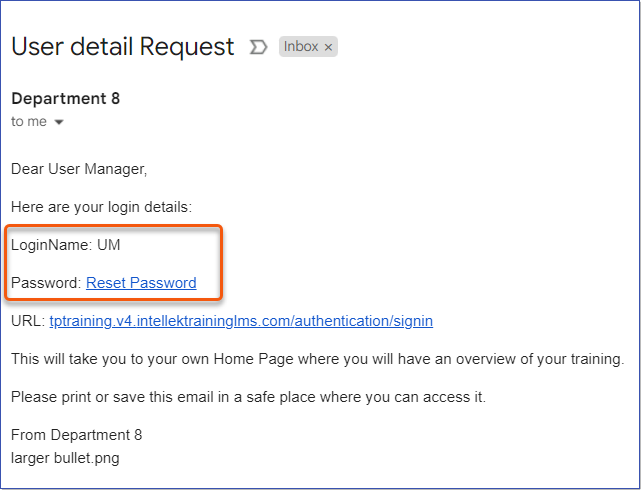
4.Open the email from the LMS. The email includes your LoginName, the LMS URL, and a Reset Password link.
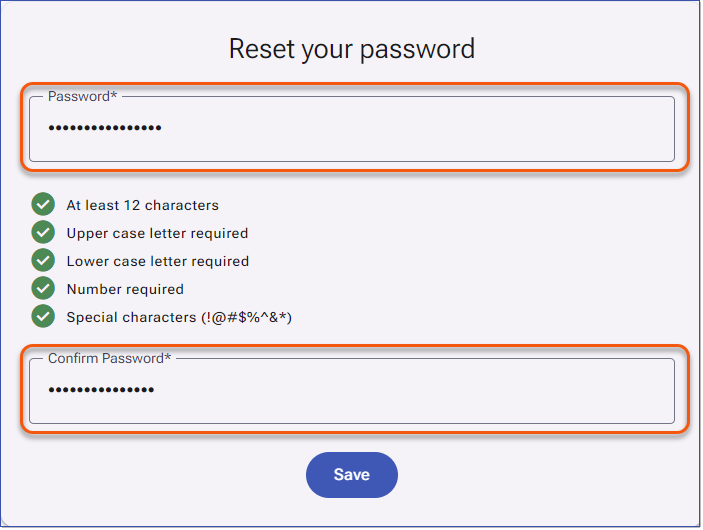
5.Click the Reset Password link to open the password page. 6.Enter a new password in the Password field. Password validation provides real-time feedback as you type, indicating when requirements are met.
7.Re-enter the password in the Confirm Password field. 8.Click Save. You will be returned to the Sign In page. |