Assume Identity 
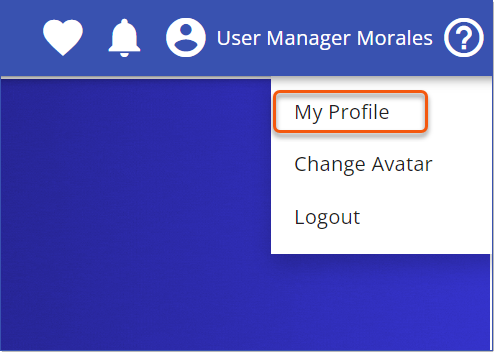
LMS Administrators can access another User's account using the Assume Identify feature, available from the My Profile page. This feature enables administrators to view the LMS as if they were another User, helping with tasks like troubleshooting or testing Course and Path assignments, dashboard configuration, and more. LMS Administrators are granted this permission by default, and other Users can be granted access through a custom Security Profile that includes the Users - Assume Identity permission. 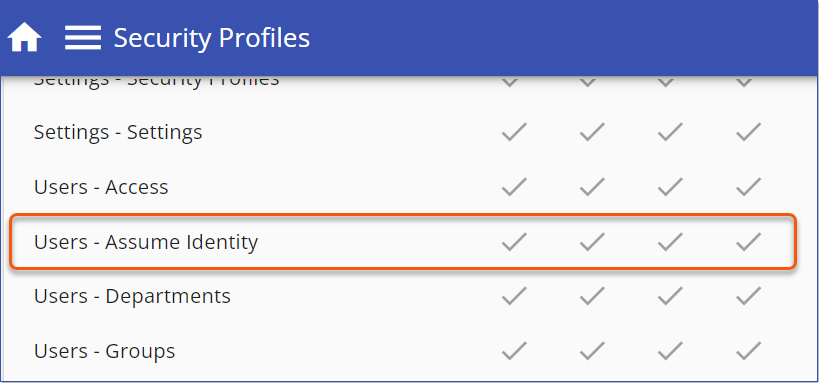 Security Profile - Users - Assume Identity Permission Assume Identity1.Navigate to the My Profile Page.
2.Click the Assume Identity button to open the Select User dialog. 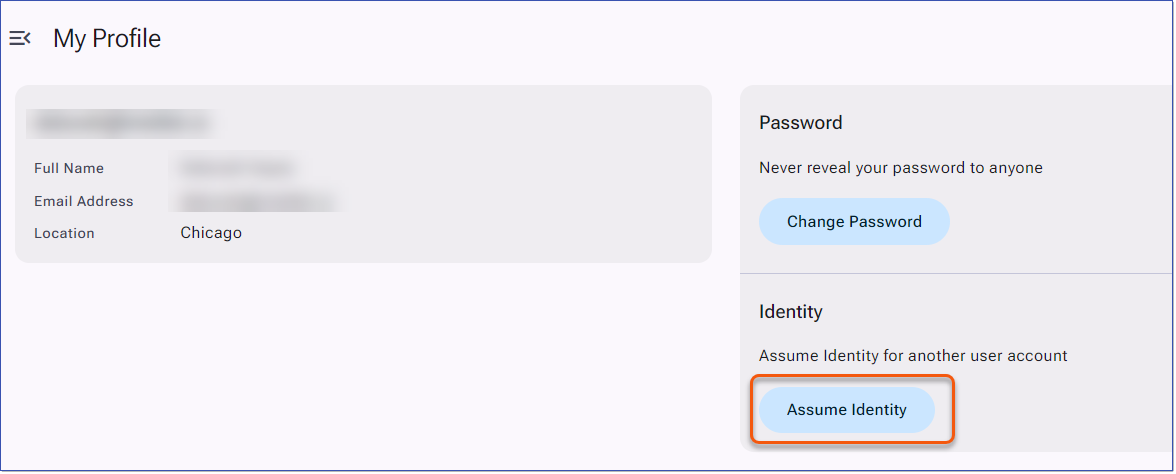 My Profile - Assume Identity 3.Enter search terms for the User in the Select User search field. Administrators can search by first name, last name, user identifier or email address. The LMS filters the Users displayed to match the search terms. 4.Select a User from the list. 5.The LMS changes the Identity Section to show the administrator has assumed the identity and displays the Revert identity banner. Revert IdentityWhen an administrator assumes the identity of a User, the LMS displays the Revert identity banner.  Revert Identity 1.Click the Revert Identity button from the banner to close the User Session for the assumed User. 2.The LMS will hide the Revert Identity banner and reload the LMS page with the Administrator information. |