Security Profiles Overview
Security Profiles control the various “permissions” given to each user in the LMS.
Users > Edit User > Security Profiles.
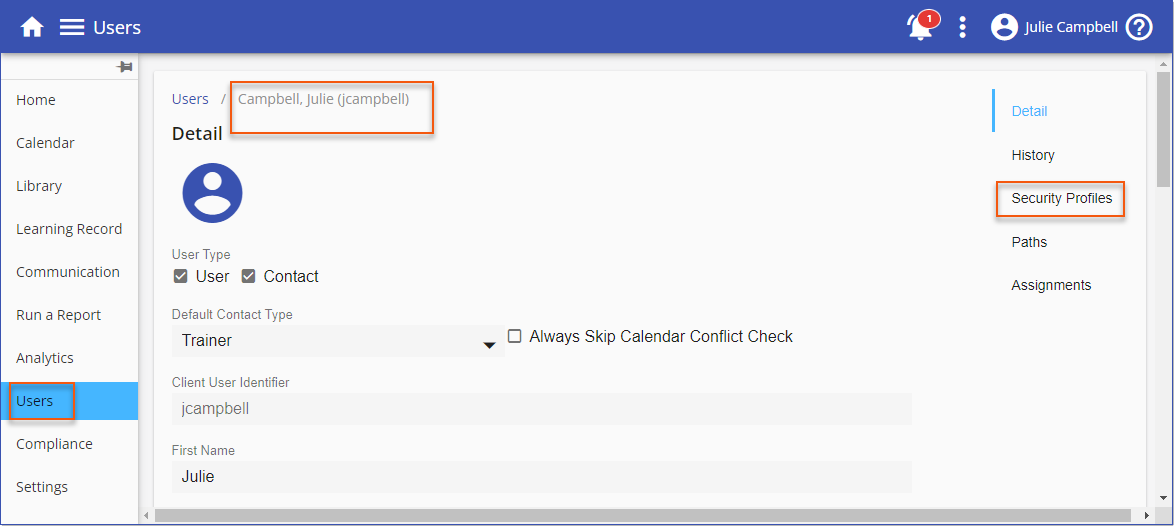
These are usually set up by default as Standard User when the end-user data is imported (see the SecurityProfileCode topic); however, you can also assign these manually. The features and functionality you and the other users see in the LMS will depend on which Security Profile(s) have been assigned.
To provide flexibility as to what a user can and cannot do in the LMS, users can be assigned more than one Security Profile (once end-user data has been imported).
Review system System Security Profile documentation for a complete detail of visibility and privileges.
You are also provided an option to create your own profiles by cloning a system security profile, modifying the permissions and saving the profile with a new custom name.
Custom Security Profiles
Custom Security Profiles can be created to provide Users with a combination of permissions. Create custom security profiles based on permissions and user visibility of existing Security Profiles.
 Watch Video on Custom Security Profiles
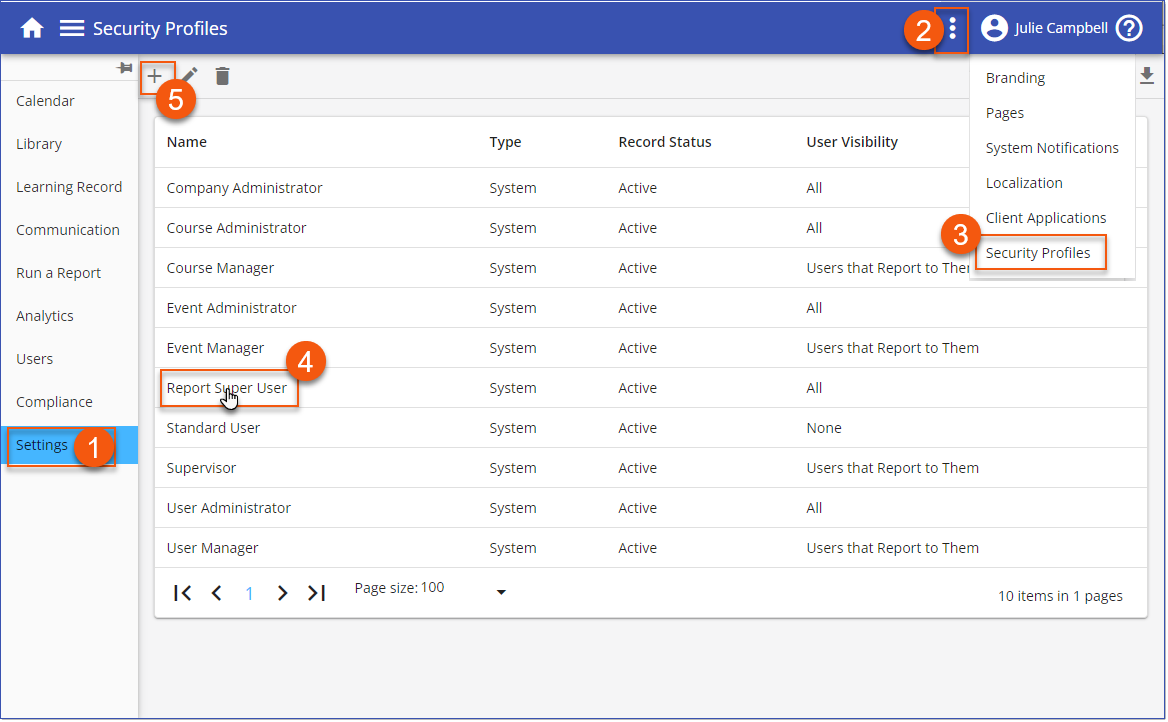
Settings > 3-dot options > Security Profiles.
o1-3. Navigate to Security Profiles to view/manage Security Profiles.
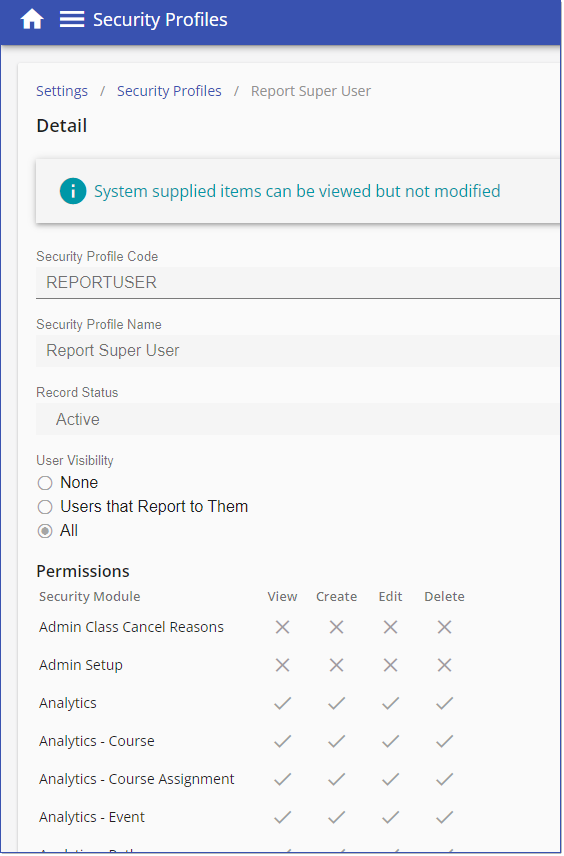
o4. Click a Name/edit a current security profile to view the permissions settings.
o5. Add a new security profile - click 
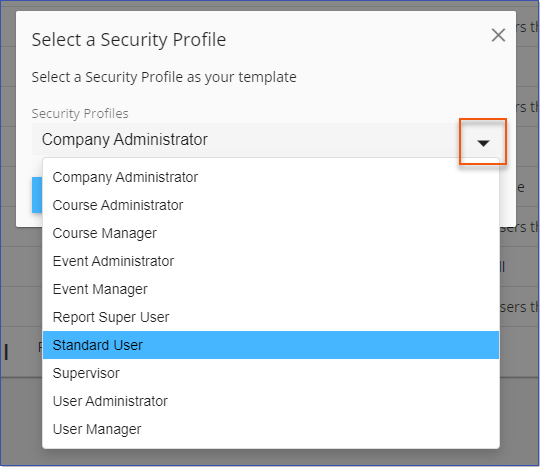
oSelect a current security profile to use as a template for the new custom security profile then click SELECT.
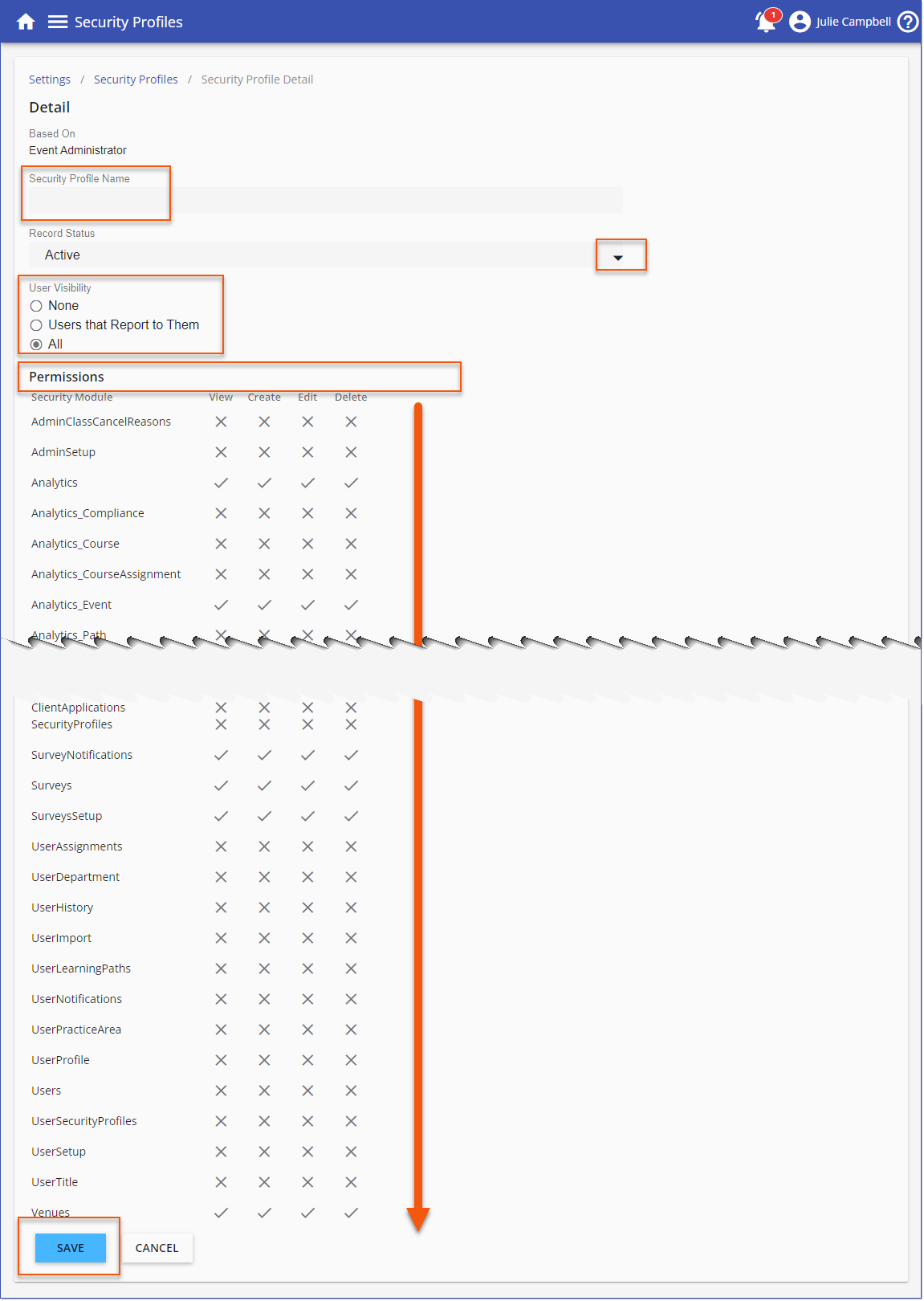
oDefine the new Security Profile:
▪Provide a Security Profile Name for the custom security profile.
▪Indicate the record Status - Active is required to apply the profile to users.
▪User Visibility - set profile to have visibility of No Users, Users that Report to Them or All Users in the LMS.
▪Assign action Permissions (View, Create, Edit, Delete) for each Security Module. You will be modifying current permissions, as displayed, for your chosen template Security Profile.
▪SAVE and be sure to fully test before aligning with users outside your test group.
Security Profile - Manager Hierarchy
Security Profiles now include an enhanced User visibility option, "Users that Report to Them (include full hierarchy)," which supports a hierarchical management structure, enabling a Supervisor/Manager with the rights to access records of Users who report both directly and indirectly to them.
For instance, if a company has local Managers to whom Users report, and a Regional Manager to whom the local Managers report, a custom Security Profile can be configured for the Regional Manager to grant them additional data visibility so that when they log in to the LMS they can view the LMS records of both the local Managers that report to them and the Users that report to the local Managers (include full hierarchy). When local Managers log in to the LMS they view LMS records for the Users that report to them directly.
In order to grant this permission to a Supervisor/Manager you need to first create a custom Security Profile that includes the enhanced User visibility option:
1.Navigate to Settings > 3-dot options > Security Profiles.
2.Click the  sign to add a new Security Profile.
3.Select Supervisor from the Security Profiles drop-down. The Supervisor profile will be used as a template for the new custom Security Profile. Click SELECT.
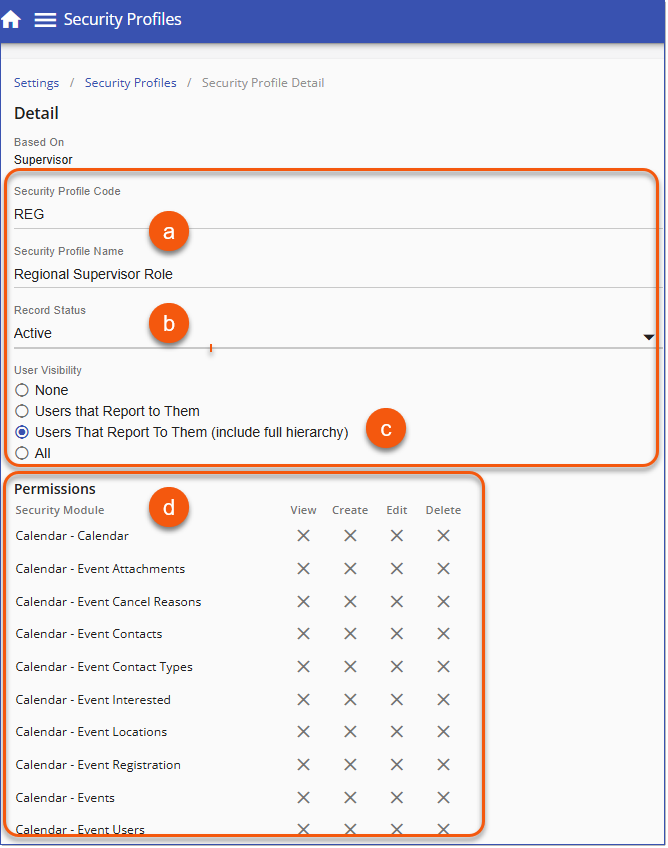
4.Define the new Security Profile:
a.Enter a Security Profile Code and Security Profile Name.
b.Indicate the record Status - Active is required to apply the profile to Users.
c.Set the User Visibility to "Users That Report To Them (include full hierarchy)".
d.Assign Permissions (View, Create, Edit, Delete) for each Security Module as desired.
e.Click SAVE.
Once this custom Security Profile is created, it can be assigned to the Managers that require this additional data visibility, i.e. the Regional Manager(s). See Security Profiles