The LMS supports Microsoft Teams integration, allowing LMS administrators to generate a Teams meeting link directly from an LMS Calendar event using the Include Webinar and Teams Meeting options. Invited users receive standard Outlook/Teams invitations, and accepted meetings are automatically added to their Outlook and Teams calendars.
Teams meetings can be added to, removed from, or regenerated for existing LMS Calendar events at any time. To function correctly, a Teams meeting must have at least one Event Contact assigned. The Event Contact is designated as the Teams meeting co-organizer.
Before using this feature, certain technical requirements must be configured within your environment. Share the Teams Integration Technical Requirements with your IT team to ensure the necessary configuration and supports are in place.
Teams Integration - Technical Requirements
To enable Microsoft Teams meeting generation from the Intellek LMS, the following configuration must be completed within Microsoft Entra and Microsoft Teams
Prerequisites
Before Teams meeting links can be generated from the LMS, your IT team must:
•Add the required Microsoft Graph application permissions to the Intellek Entra application.
•Create or identify an Entra security group containing users who are authorized to create Teams meetings through the LMS.
•Configure a Teams application Access Policy that allows the Intellek application to create Teams meetings on behalf of users in the designated group.
•Advise Intellek this work has been completed.
Important: Granting the required Microsoft Graph permissions alone does not provide access to create Teams meetings for users. Access is further restricted through a Teams Application Access Policy for Entra group membership.
Entra Application Permissions
The required permissions can be added to the existing Intellek Outlook integration application. If this application does not exist, the permissions can instead be added to the existing Intellek Single Sign-On (SSO) application.
Required permissions for Teams Integration:
Add the following Application Permissions and grant administrator consent:
OnlineMeetings.ReadWrite.All
OnlineMeetingArtifact.Read.All
User.Read.All
Entra Security Group
We recommend creating a dedicated Entra security group to control which users can create Microsoft Teams meetings from the LMS.
Although an existing security group may be used, you must record the group's Object ID, as it will be required during policy configuration.
Steps:
1.Create a new security group (recommended) or identify an existing suitable group.
2.Record the group's Object ID.
3.Add all LMS administrators or other users who should be permitted to create Teams meetings through the LMS.
Only uses who are members of this group will be authorized to create Teams meetings via the LMS.
Teams Application Access Policy
A one-time PowerShell configuration is required to authorize the Intellek application to create Teams meetings on behalf of the users in the designated Entra group.
Install the Microsoft Teams PowerShell Module
Install-Module MicrosoftTeams
Connect to Microsoft Teams
Connect-MicrosoftTeams
Create the Application Access Policy
New-CsApplicationAccessPolicy -Identity "IntellekLMSMeetingPolicy" -AppIds "[CFM Entra Application ID for Teams/Outlook Integration]" -Description "Allow Intellek LMS to create Teams meetings via MSGraph"
Assign the Policy to the Entra Group
New-CsGroupPolicyAssignment -GroupId "Group-Object-ID e.g. c13af9ad-d197-4c73-ad3a-954e88576937a" -PolicyType "ApplicationAccessPolicy" -PolicyName "IntellekLMSMeetingPolicy"
Verify the Configuration
Run the following command to verify that the policy was created successfully:
Get-CsApplicationAccessPolicy -Identity IntellekLMSMeetingPolicy
Notify Intellek
Once these steps are complete, email [email protected]. Once we receive your information, we will enable Teams integration for your LMS instance.
Ongoing Administration
The designated Entra security group controls who can create Teams meetings through the LMS.
Your IT department is responsible for maintaining membership of this group.
Examples:
•Add new LMS administrators when they require access to create Teams meetings.
•Remove users who leave the organization or no longer require access.
•Periodically review group membership to ensure only authorized users retain access.
Only users who are members of the designated Entra security group will be able to create Microsoft Teams meetings through the LMS.
Security Model
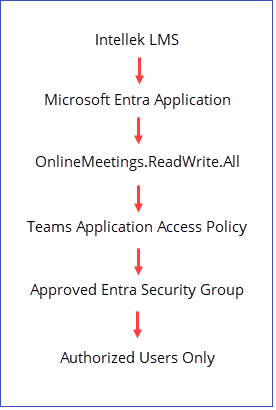
This configuration ensures that, while the Intellek application is granted the necessary Microsoft Graph permissions, the ability to create Teams meetings is restricted to approved users through group-based access control.
Data Accessed and Stored by Intellek for Teams Meetings
Intellek follows the principle of least privilege and retrieves and stores only the information required to support Microsoft Teams meeting integration and attendance reporting.
Entra Intellek Application Credentials
•Tenant ID
•Application ID
•Application password
Meeting Creation
•Meeting ID
•Meeting join link
•Meeting join ID
•Meeting join password
Attendance Reporting
For meetings associated with the LMS calendar, Intellek retrieves and stores attendee information using:
•Microsoft Entra ID Tenant ID
•Meeting ID
No additional meeting content, chat messages, files, recordings, or user mailbox data are accessed through this integration.
|
