1.Create or edit a scheduled webinar/event in the LMS Calendar. 2.Check the Include Webinar option. 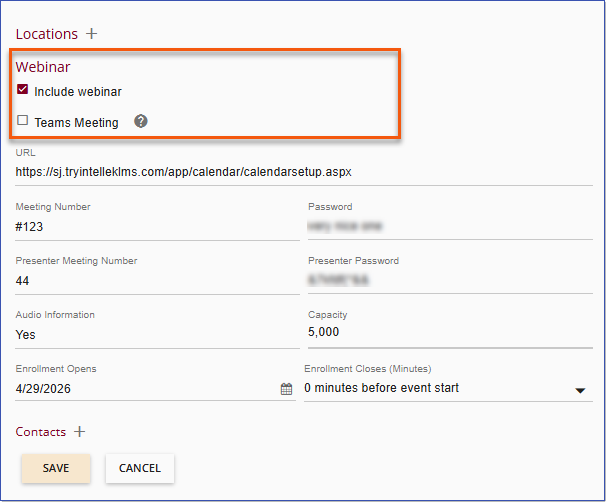 Include Webinar Option 3.Select the Teams Meeting option. 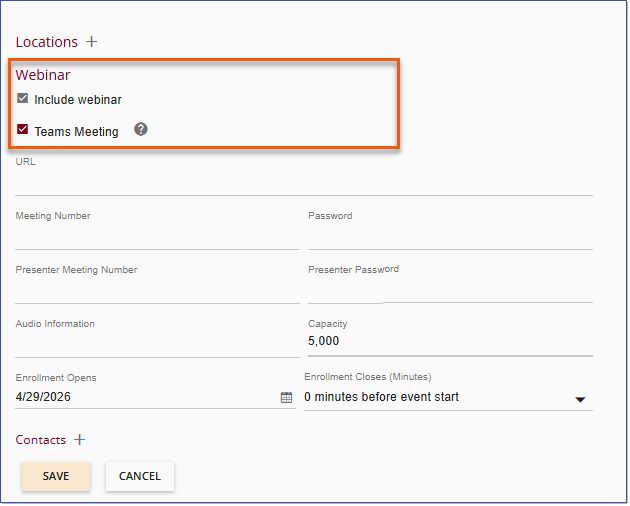 Teams Meeting Option 4.Add the Event Contact(s). To ensure proper management of the Teams meeting at least one Event Contact is required to be added to the meeting. It is highly recommended that the Instructor, Trainer, and/or Facilitator be designated with this role. For more information about configuring Event Contacts in your LMS, see Event Contacts.
5.Save the event. Once saved, the LMS automatically generates the Microsoft Teams meeting link and associated meeting details. 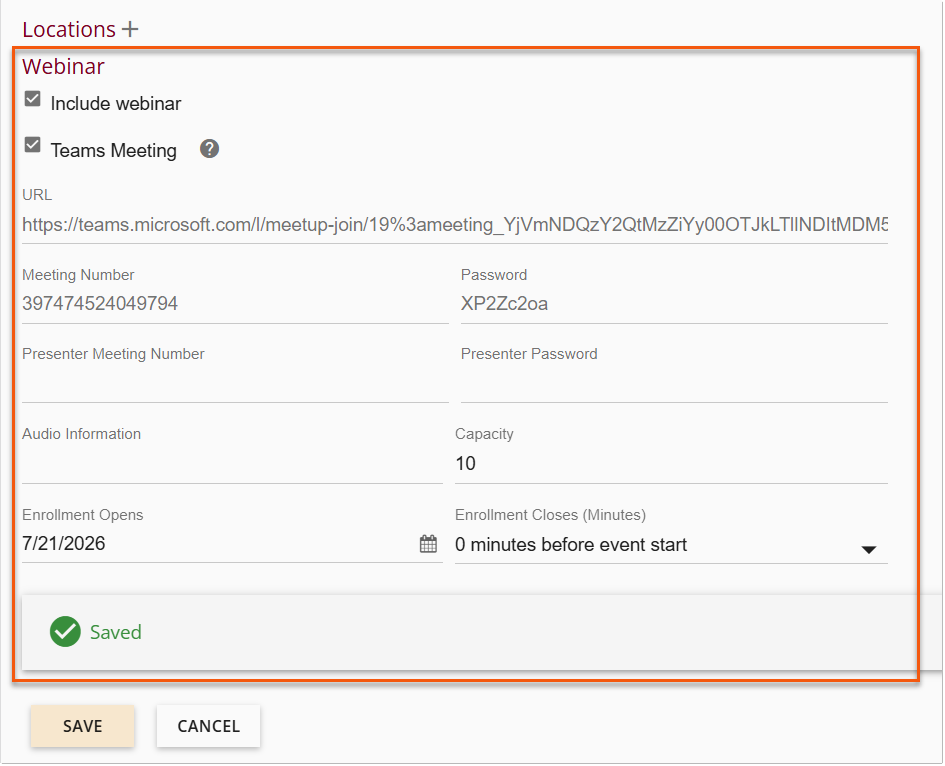 Teams Meeting Link generated 6.Complete any remaining event details and select Save. 7.Add users to the event or allow users to self-enroll. 8.Invited or enrolled users will receive the standard Outlook/Teams invitations. Accepted meetings appear in their Outlook and Teams calendars. 9.After the session, attendance data is synchronized nightly from Microsoft Teams back to the LMS for reporting and completion tracking.
|
|
