The LMS supports several authentication methods, (Username/Password, SSO, Both). When your system is upgraded to LMS v4, Intellek will migrate your existing authentication settings from LMS v3. In LMS v4, you will have access to the Setup Authentication tool, which allows your organization to update and manage authentication methods at any time.
We recommended assigning a designated technical team member to manage this function within the LMS and ensure they have the appropriate administrative rights.
 For clients remaining on LMS v3, Intellek will continue to support your existing authentication settings.
LMS v4 Authentication Overview 
LMS v4 features a Hybrid Authentication Model, enabling clients to support multiple authentication methods for their Users. Administrators can now configure supported authentication methods: Single Sign-on (Entra ID (Azure AD), ADFS, or OKTA), Username and Password, or Both using the LMS Setup Authentication tool.
The Authentication method can be configured directly from the Settings page.
1.Navigate to Settings > and select Setup Authentication.
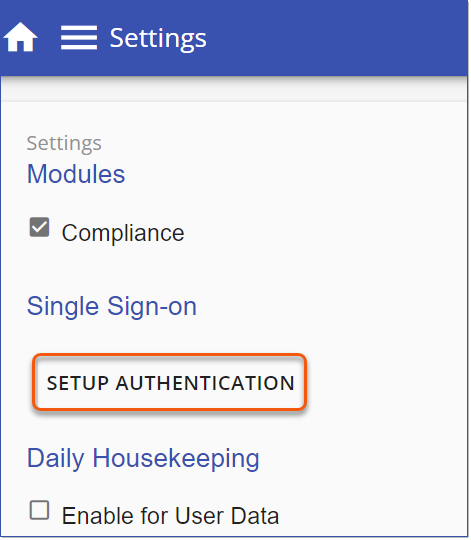
2.Select Authentication to display the Authentication Methods page.
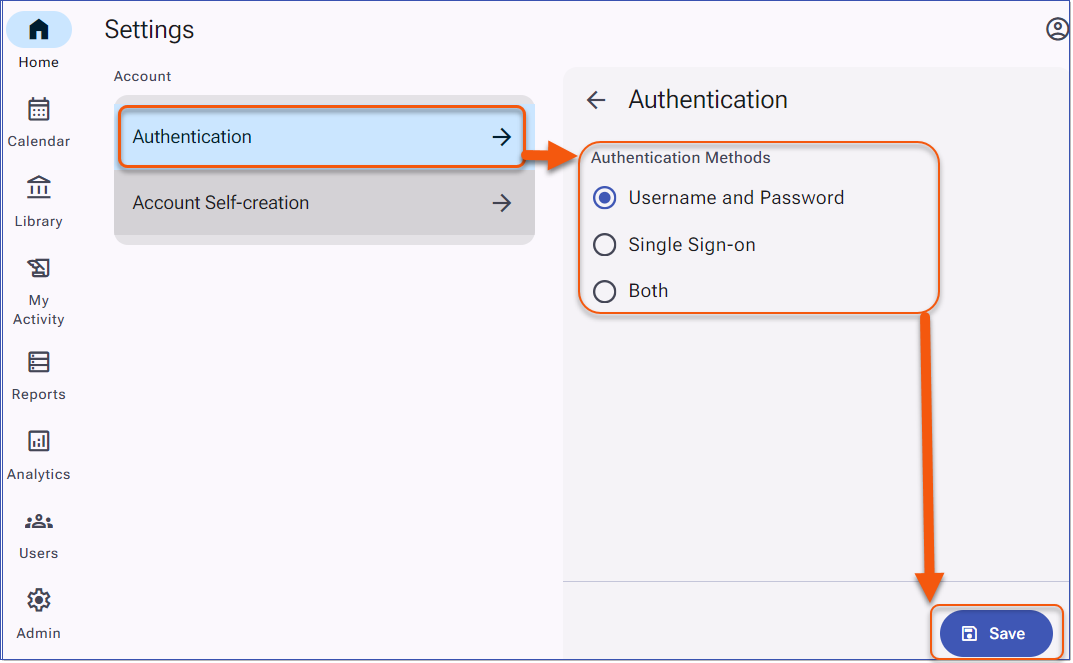
Authentication Methods
3.Select the desired authentication method: Username and Password, Single Sign-on, or Both.
4.Click Save. Complete configuration for the selected authentication method.
Setup Authentication - SSO Provider Details
Clients who have upgraded to LMS v4 can now configure and manage their Single Sign-On credentials directly within the SSO Provider tab (Azure, Okta, or ADFS) of the LMS Setup Authentication tool. For clients still on LMS v3, SSO details are provided to Intellek and the configuration is handled on your behalf.
1.Navigate to Settings > and select Setup Authentication.
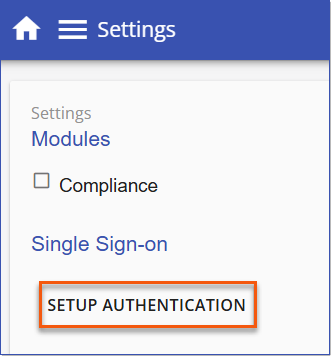
Setup Authentication
2.Click Authentication to expand the menu.
3.Select Single Sign-on and complete the required details on the appropriate SSO Provider tab.
oFor Azure (Entra ID) enter the details as follows:
•Client ID: Enter the client secret value
•Tenant Name: Directory (tenant) ID
•Username Property Name: enter the user property for log in (for Entra ID this is usually "UPN" or "unique_name")
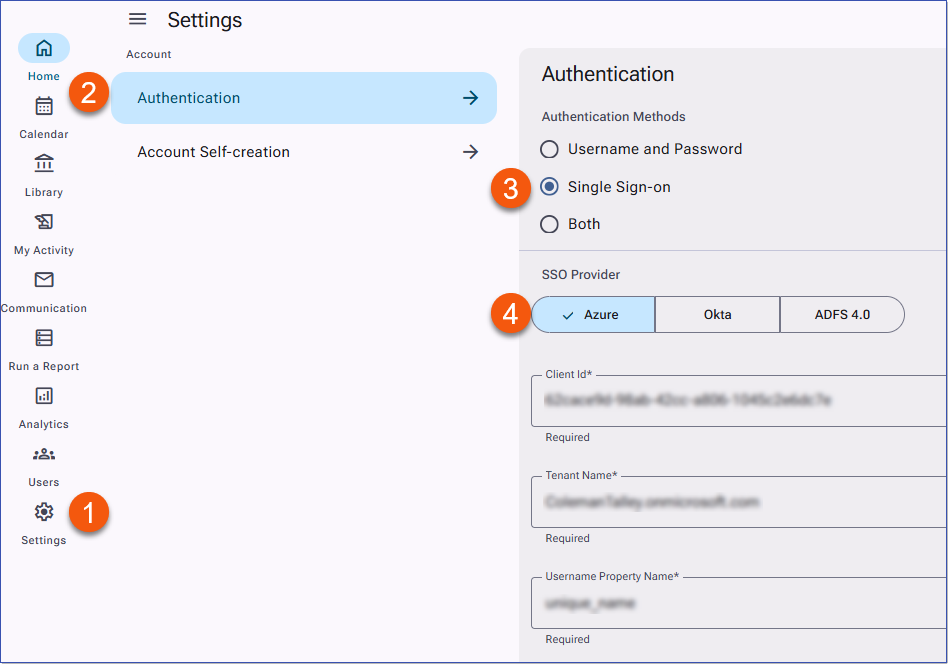
Azure (Entra ID) SSO Provider Details
oFor Okta enter the details as follows:
•Account Name: enter the URL for your Okta account, i.e. mblaw.okta.com.
•App Id: Enter the Client ID
•Username Property Name: this field should contain the property used for the user verification/LMS login, i.e. email. The import sheet refers to this field as 'user_Identifier' and the API calls it "login_name").
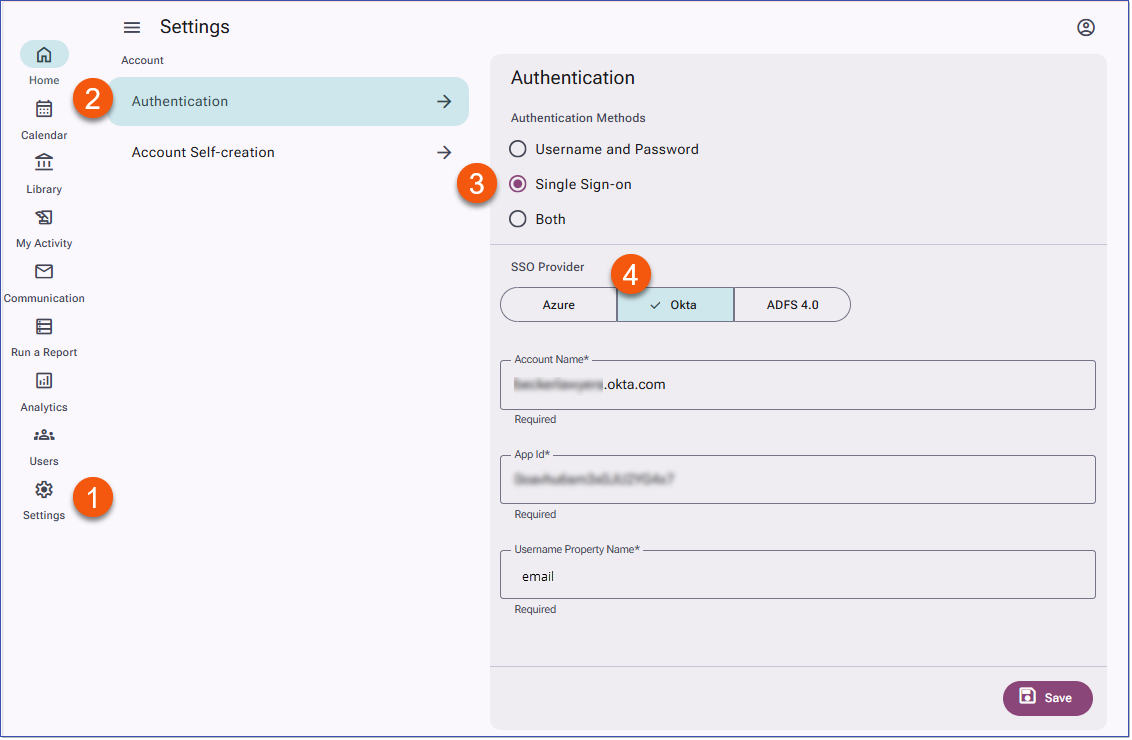
Okta SSO Provider Details
4.Click Save, then use the left navigation menu to return to the Home page or any other page to exit Settings.
5.See Related topics for configuring Okta, Entra ID, and ADFS for LMSv4.
Important! SSO Callback URL All clients who have updated to LMS v4 and using SSO will need to add a new LMS v4 callback URL to their SSO application prior to the LMS v4 upgrade. See details for SSO Provider linked below. |
|
