The LMS now supports a Microsoft Teams integration that allows LMS administrators to generate a Teams meeting link directly from an LMS Calendar event using the Include Webinar and Teams Meeting options. Invited users will receive standard Outlook/Teams invitations, and accepted meetings will automatically appear in their Outlook and Teams calendars.
Teams meetings can be added to, removed from, or regenerated for existing LMS Calendar events as needed.
Before using this feature, certain technical requirements must be configured in your environment. Share the Teams Integration Technical Requirements with your IT team to ensure the necessary configuration and support are in place for your organization.

1.Create or edit a scheduled webinar/event in the LMS Calendar. 2.Check the Include Webinar option. 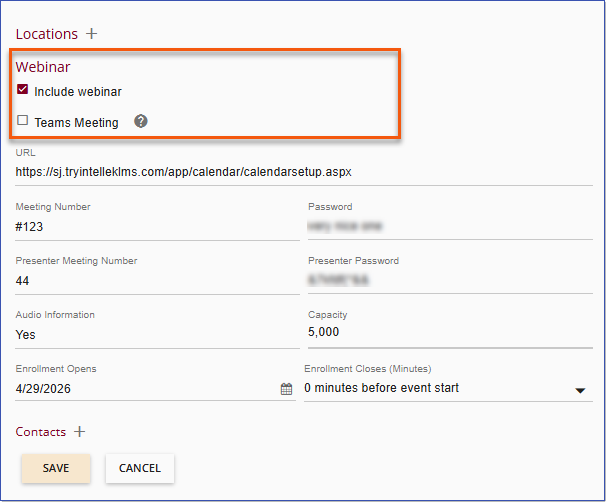 Include Webinar Option 3.Select the Teams Meeting option. 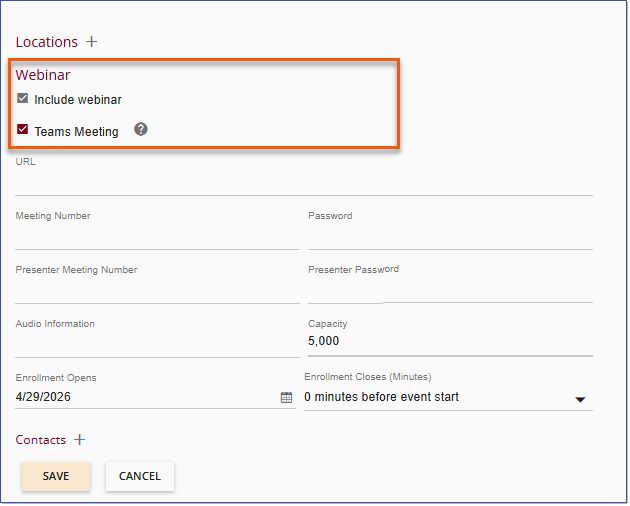 Teams Meeting Option 4.Save the event. Once saved, the LMS automatically generates the Microsoft Teams meeting link and associated meeting details. 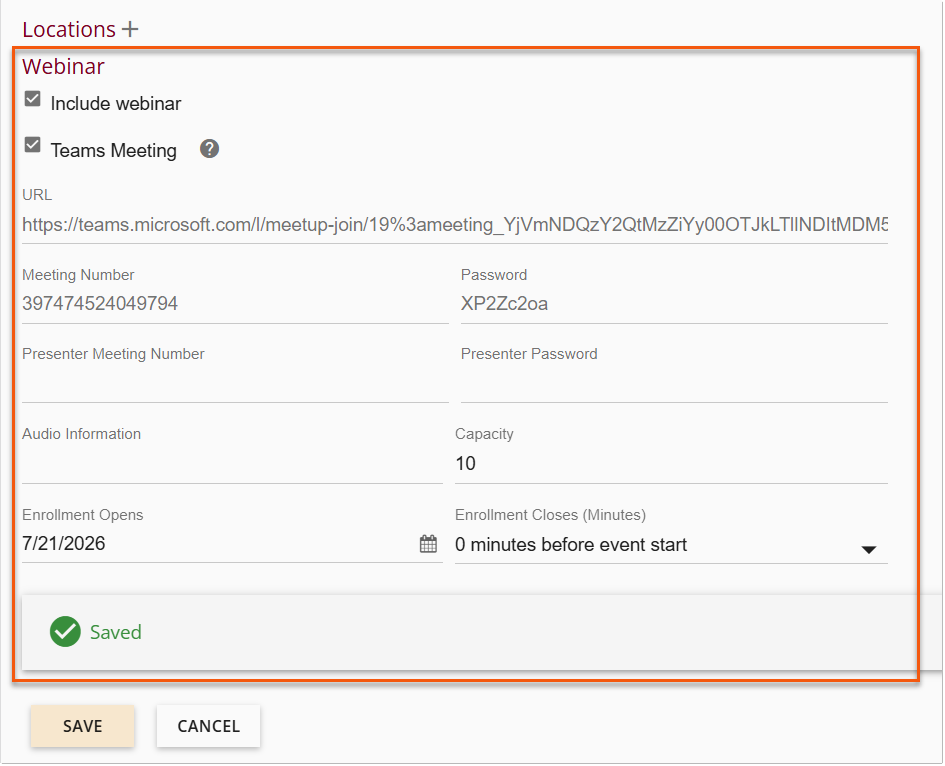 Teams Meeting Link generated 5.Complete any remaining event details and select Save. 6.Add users to the event or allow users to self-enroll. 7.Invited or enrolled users will receive the standard Outlook/Teams invitations. Accepted meetings appear in their Outlook and Teams calendars. 8.After the session, attendance data is synchronized nightly from Microsoft Teams back to the LMS for reporting and completion tracking. |
Teams attendance information is synchronized back into the LMS nightly. Instead of manually marking learners as attended, the LMS will automatically: 1.Retrieve attendance information from Teams. 2.Update learner completion status in the LMS. 3.Record attendance data for reporting and tracking purposes. |
To enable Teams meeting link generation from the LMS, clients must ensure the following prerequisites are in place: •Add a new permission to the Intellek application they have set up in Microsoft Entra. •Create (or designate) an Entra group whose members are authorized to create Teams meetings through the LMS. Add any users that should be allowed to create Teams meetings in the LMS to this group. •Configure a new Entra Policy that grants the LMS permissions to create Teams meetings on behalf of authorized users. Entra Application PermissionsThe new permissions can be added to either the existing Outlook Entra application or the SSO Entra application. Required new permissions: OnlineMeetings.ReadWrite.All Entra Group1.We recommend creating a new dedicated Entra group to control which users can create Teams meetings through the LMS. A new group is not required if an existing group is suitable; however, an Entra group must be specified and its Group-Object-ID recorded. 2.Add all LMS administrators who should be permitted to create Teams meetings to this group. New Entra PolicyA one-time PowerShell script is required to allow members of the designated Entra group to create Microsoft Teams meetings through the LMS. 1.The following commands must be run once by the IT department using PowerShell with administrative privileges: Install-Module MicrosoftTeams Connect-MicrosoftTeams New-CsApplicationAccessPolicy ` -Identity "IntellekLMSMeetingPolicy" ` -AppIds "[Entra Application ID for Teams/Outlook Integration]" ` -Description "Allow Intellek LMS via Microsoft Graph to create meetings" New-CsGroupPolicyAssignment ` -GroupId "[Group Object ID]" ` -PolicyType "ApplicationAccessPolicy" ` -PolicyName "IntellekLMSMeetingPolicy" To verify the policy was created successfully, run: Get-CsApplicationAccessPolicy -Identity IntellekLMSMeetingPolicy Ongoing AdministrationThe IT department is responsible for maintaining membership of the designated Entra group. For example: •When a new LMS administrator joins the organization, they must be added to the group. •When an LMS administrator leaves the organization or no longer requires access, they should be removed from this group. Only users who are members of the designated Entra group will be able to create Teams meetings through the LMS.
|
