The LMS supports a new Teams Admin User Type, allowing LMS administrators to designate specific users as Teams Meeting Owners. Previously, meeting ownership was automatically assigned to the LMS Administrator who created the Teams meeting.
With this enhancement, LMS Administrators can continue to create Teams meetings while assigning ownership to an appropriate Teams Admin. Each Teams meeting must have one Meeting Owner, who is assigned the Organizer role in Microsoft Teams.
After the meeting, attendance information, transcripts and recordings are available to the Organizer through Microsoft Teams, subject to your organization's retention policies.
Meeting Owner:
•Must be assigned the Teams Admin User Type.
•Is identified as the Teams Meeting Owner in the Calendar Event
•Is assigned the Organizer role in the Microsoft Teams meeting.
•Receives Teams-related meeting notifications, including meeting chats and recording notifications.
•Provides the Organizer association required for attendance processing through Microsoft Graph.
Event Contacts continue to be used to designate Teams Co-organizers. Only Event Contacts explicitly added to the Calendar event are assigned Co-organizer role.
LMS Role |
Teams Role |
How Many |
Function |
|---|---|---|---|
Meeting Owner |
Organizer |
One Per Meeting |
Receives all Teams notifications for the Event |
Event Contact |
Co-organizer |
At least one, including the Meeting Owner |
Can start the meeting, has access to Meeting controls, record, lobby, etc. |
Note: To be eligible as a Meeting Owner, the user must also meet Microsoft's Teams integration requirements, including membership in the Microsoft Entra group configured for the Teams integration. See Teams Integration - Technical Requirements.
Assigning Meeting Roles
Teams Admin User Type
The Teams Admin User Type is selected from the User Details page. Once selected, the user becomes eligible to be a Meeting Owner.
1.Navigate to Users.
2.Select a user to open the User Details page.
3.Select the Teams Admin check box.
4.Click Save.
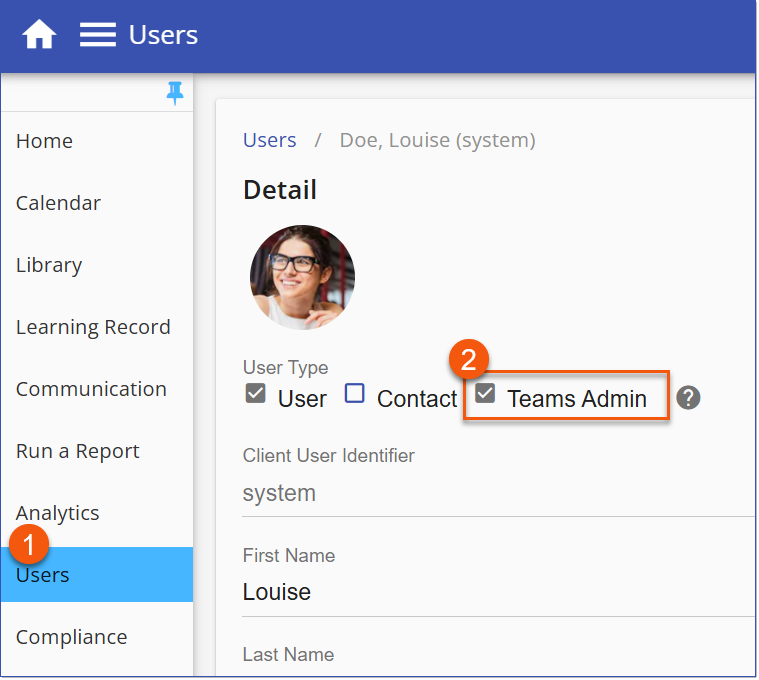
Teams Admin Role
Contact User Type
The Contact User Type is selected from the User Details page. Once selected, the user becomes eligible to be an Event Contact.
1.Navigate to Users.
2.Select a user to open the User Details page.
3.Select the Contact check box.
4.Click Save.
Setting the Roles in an Event
1.Create or Edit a scheduled Event in the Calendar
2.Select the Include Webinar option, then select the Teams Meeting option.
3.Select the Meeting Owner from the drop-down list. The selected Meeting Owner becomes the Microsoft Teams Organizer and receives meeting-related notifications.
 Note: Only one Meeting Owner can be assigned to a meeting. This is a required field.
4.Add the Event Contact(s), including the Meeting Owner.
5.Save the Event. The LMS generates the Microsoft Teams meeting link and associated meeting details.
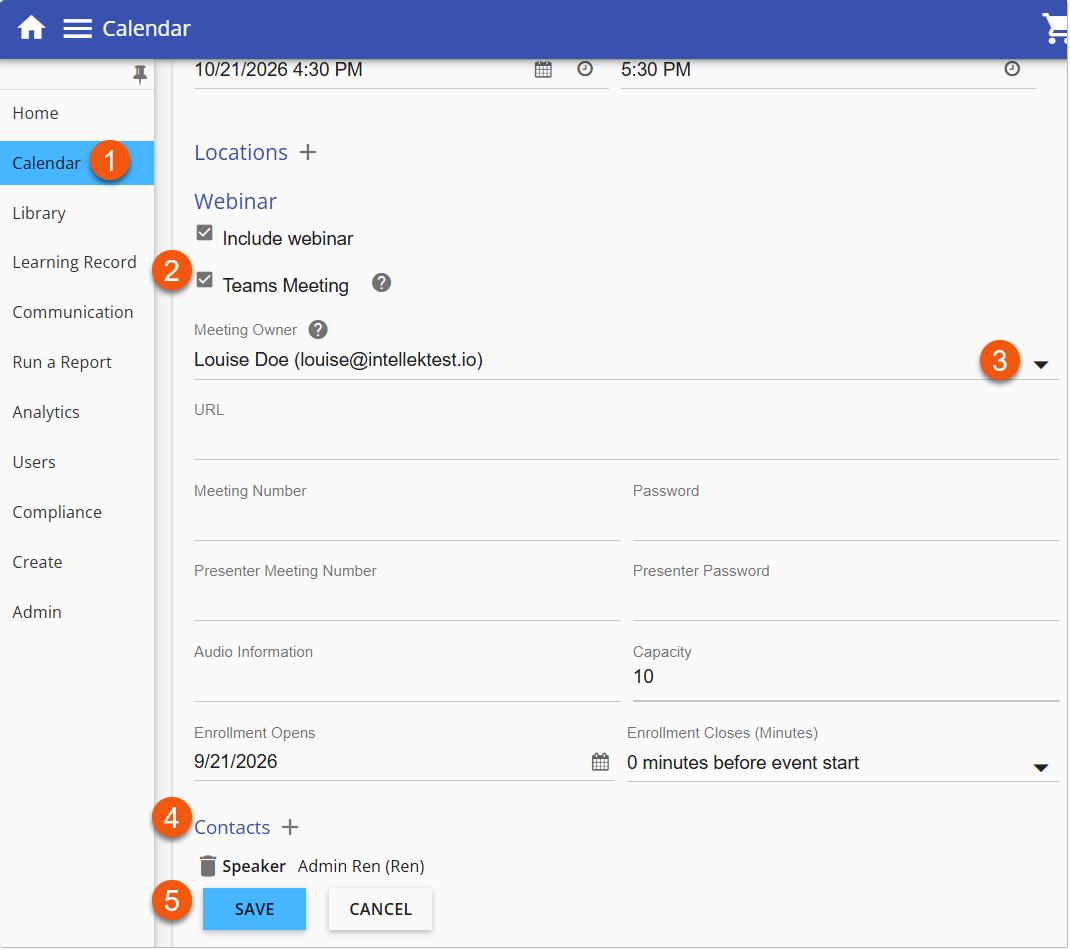
Teams Event
Bulk Import of Calendar Events
This enhancement also extends to bulk event imports through the new Teams Meeting Owner Email field. Administrators can specify the Meeting Owner when creating Teams-enabled events via spreadsheet import.