Bug Fixes
Available Oct 19, 2026
NEW

This update introduces a new Teams Admin role, allowing LMS administrators to designate specific users as Teams Meeting Owners. Previously, meeting ownership was automatically assigned to the LMS Administrator who created the Teams meeting. With this enhancement, LMS Administrators can continue to create Teams meetings while assigning ownership to an appropriate Teams Admin. Each Teams meeting must have a single Meeting Owner, who becomes the Teams meeting organizer. The Meeting Owner:•Must be assigned the Teams Admin role. •Becomes the Teams meeting organizer in Microsoft Teams. •Receives Teams-related meeting notifications, including meeting chats and recording notifications. •Provides the organizer association required for attendance processing through Microsoft Graph. Event Contacts continue to be used to designate Teams co-organizers. Only Event Contacts explicitly added to the event are assigned co-organizer permissions. Note: The Teams Admin role is separate from LMS contact roles. To be eligible as a Meeting Owner, the user must also meet Microsoft's Teams integration requirements, including membership in the Microsoft Entra group configured for the Teams integration. See Teams Integration - Technical Requirements. Assigning a Teams Admin Role to a UserThe Teams Admin role is assigned from the User Details page. Once assigned, the user becomes available in the Meeting Owner dropdown when creating a Teams meeting. 1.Navigate to Users. 2.Select a user to open the User Details page. 3.Select the Teams Admin checkbox. 4.Click Save. 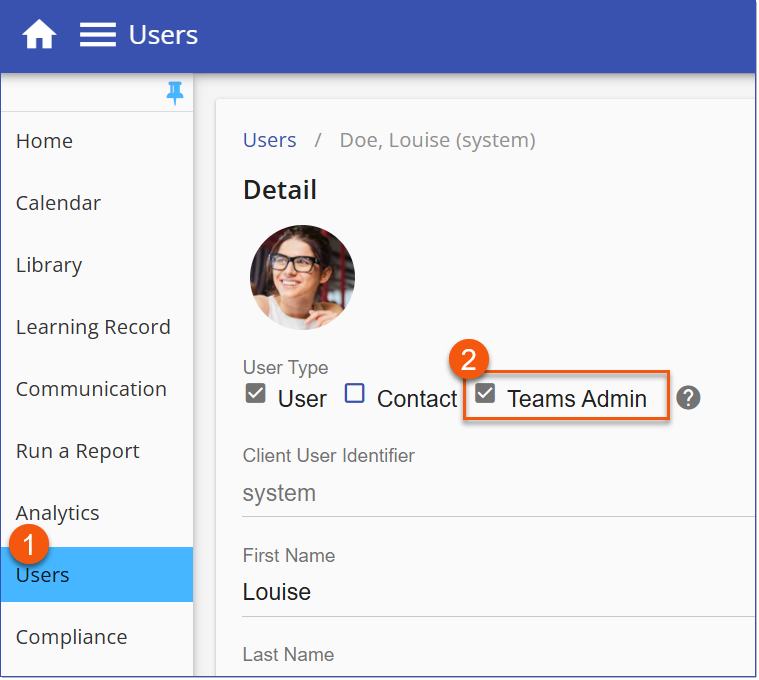 Teams Admin Role Setting the Teams Meeting Owner1.Create or Edit a scheduled Event in the Calendar 2.Select the Include Webinar checkbox, then Teams Meeting checkbox. 3.Select the Meeting Owner from the dropdown list. The selected Meeting Owner becomes the Teams meeting organizer and receives all meeting-related notifications.
4.Add the Event Contact. Contacts explicitly added to the meeting will automatically be designated as a Teams meeting co-organizer. 5.Save the event. The LMS generates the Microsoft Teams meeting link and associated meeting details. 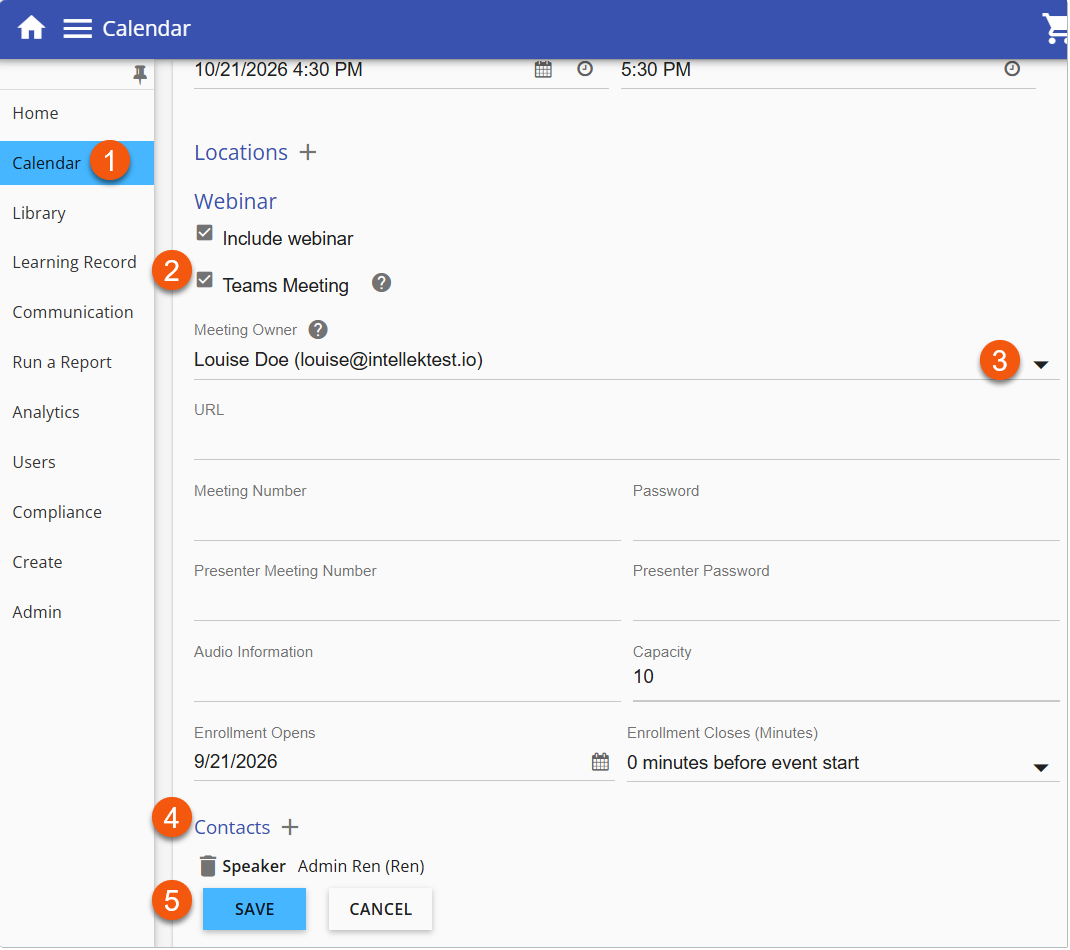 Teams Admin Role Bulk Import of Calendar EventsThis enhancement also extends to bulk event imports through the new Teams Meeting Owner Email field. Administrators can specify the Meeting Owner when creating Teams-enabled events via spreadsheet import. |

Only individuals who are explicitly added to an LMS event as Event Contacts will be assigned Teams meeting co-organizer permissions. This means that only Event Contacts added to the event will have co-organizer permissions. If an Event Contact is removed from the event, they will also lose their co-organizer permissions for the Teams meeting. |
ISSUES RESOLVED:
•Only contacts explicitly added to a Teams meeting as an Event Contact will be assigned Teams co-organizer permissions. (26432 ShepW, 26399 McMill)
•Course not showing as Finished in Path (26773, CSK)
•Course specific certificate assigned notification not sending. (26730 26764 BSF)
•Bulk Edit on Event Registration Rules not working. (26880 FDBR)
•Completed courses display in the In Progress card on Home Dashboard. (26953 FisherP)
•Fresh Chat widget missing from v4 Home Dashboard page. (26919 TKD)
•News Banner shows placeholder in place of graphic. (26540 26572 CSK)
----------------------------------------------------------------------------------------------------------------
Any Issues listed below this line were added after Oct 16, 2026 when LMS v4.3.0.5 Release Notes were originally made available.
----------------------------------------------------------------------------------------------------------------
•A limited number of users experienced discrepancies in their completion statuses for a SCORM course. (26869 LitLrn, 25539 Butz)