The Bulk Import User History process now offers the ability to import all User History statuses for Calendar Events.
Bulk Import User Attendance
Administrators can use the Bulk Import process to Import User Attendance for calendar events. This is especially useful when you have an external attendance list, such as one from Teams or Zoom, and need to apply that data to a specific calendar event for tracking purposes.
The process begins by exporting the event's existing User attendance to an Excel file. Administrators can then update attendance for existing Users, add new attendance records as needed, and complete any missing information. Once the Excel file is updated, it is re-imported to populate the event's User attendance list.
1.Navigate to the Calendar Event > Users tab and select the 3-dot option menu  directly above the Users grid
2.Select Export User Attendance from the menu to generate an excel template with the necessary columns and format for bulk importing User history. Save the template and enter the User Attendance data into the appropriate columns. Any existing Users are included in the exported file.
a.Note the following details when adding User history to the excel file:
▪Client_User_Identifier must match the User ID in the LMS User account.
▪Location must be entered accurately as per the LMS Locations.
▪Enter a valid Event Status in the status column. Capitalize each word with no spaces. For example, 'No Show' is entered as 'NoShow', Enrolled, Finished, Waived, Passed, Failed, Cancelled, etc.
▪If a match exists for a User in the existing Event attendance, the import will update the record, i.e. change 'Enrolled' to 'Finished'.
b.Save and close the exported file.
3.Select the 3-dot option menu > Import User Attendance to import the updated User Attendance. The bulk import process will process the records and update the Event User history with the data supplied in the import file. If there are any problems along the way the import will display any errors at the top of the Uses page.
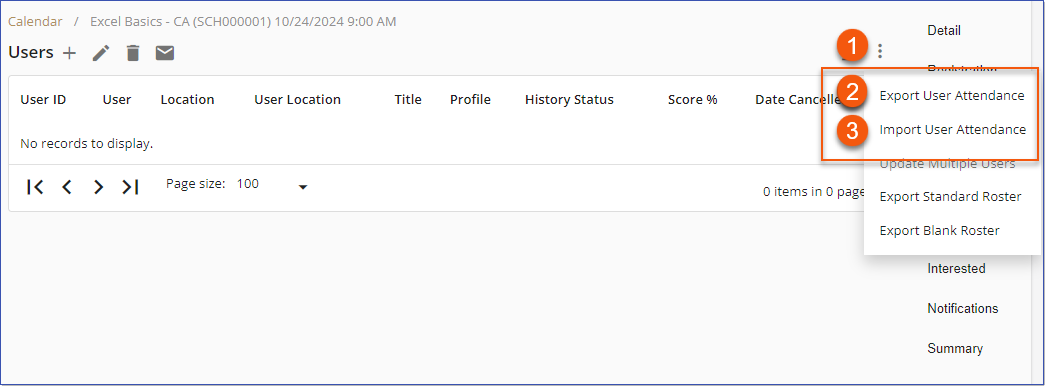
Bulk Import User Event Attendance