Single Sign-on Provider Setup 
Clients who have upgraded to LMS v4 can now configure and manage their Single Sign-On credentials directly within the SSO Provider tab (Azure, Okta, or ADFS) of the LMS Setup Authentication tool. For clients still on LMS v3, SSO details are provided to Intellek and the configuration is handled on your behalf.
1.Navigate to Settings > and select Setup Authentication.
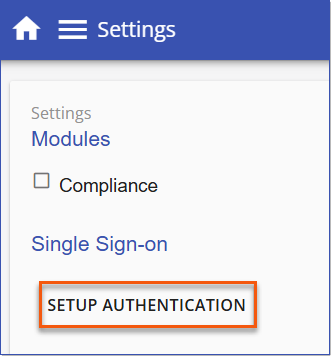
Setup Authentication
2.Click Authentication to expand the menu.
3.Select Single Sign-on and complete the required details on the appropriate SSO Provider tab.
oFor Azure (Entra ID) enter the details as follows:
•Client ID: Enter the client secret value
•Tenant Name: Directory (tenant) ID
•Username Property Name: enter the user property for log in (for Entra ID this is usually "UPN" or "unique_name")
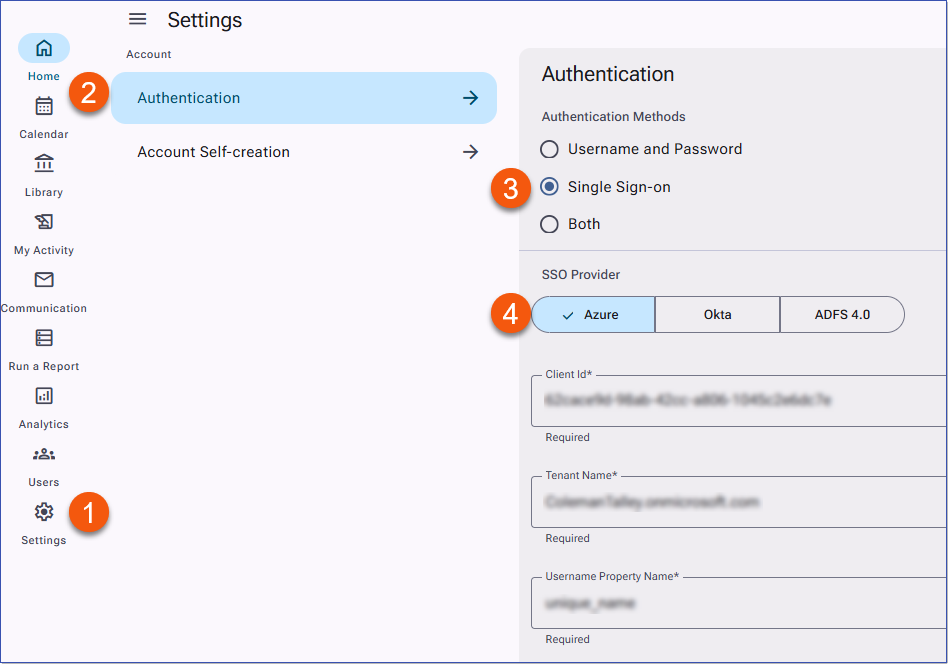
Azure (Entra ID) SSO Provider Details
oFor Okta enter the details as follows:
•Account Name: enter the URL for your Okta account, i.e. mblaw.okta.com.
•App Id: Enter the Client ID
•Username Property Name: this field should contain the property used for the user verification/LMS login, i.e. email. The import sheet refers to this field as 'user_Identifier' and the API calls it "login_name").
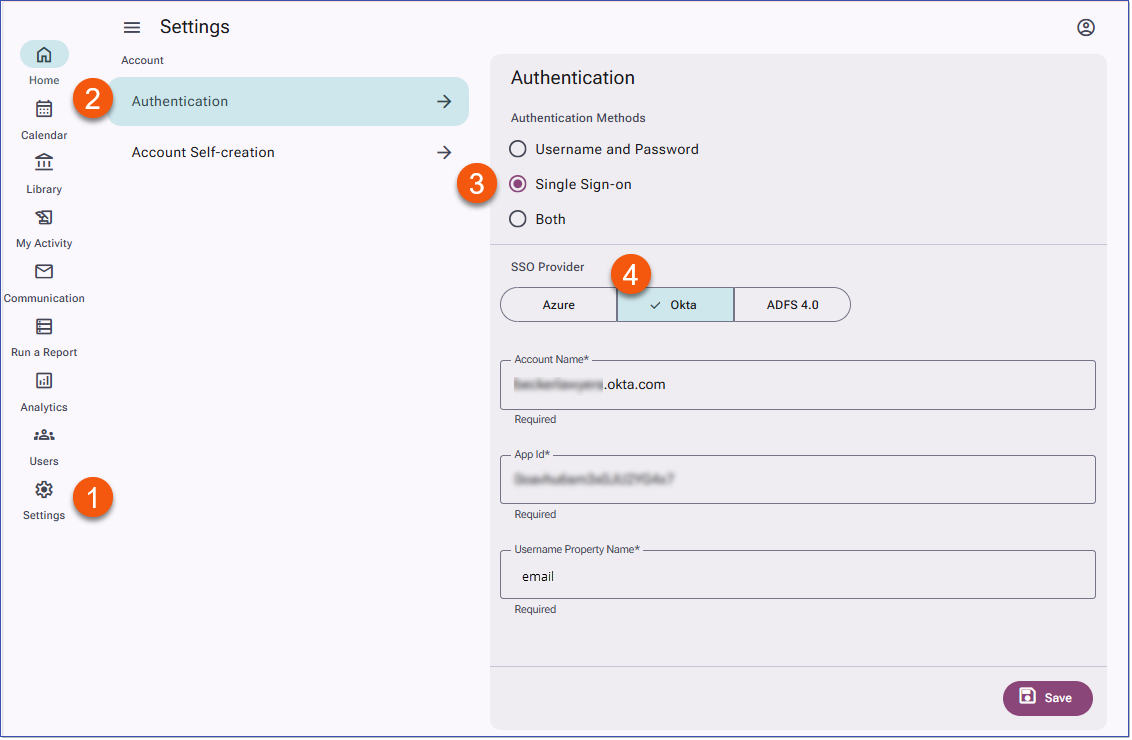
Okta SSO Provider Details
4.Click Save, then use the left navigation menu to return to the Home page or any other page to exit Settings.
5.See Related topics for configuring Okta, Entra ID, and ADFS for LMSv4.
Important! SSO Callback URL All clients who have updated to LMS v4 and using SSO will need to add a new LMS v4 callback URL to their SSO application prior to the LMS v4 upgrade. See details for SSO Provider linked below. |
Single Sign-on Login Splash Page 
For LMS v4 instances using Single Sign-on authentication, Users will be presented with a Single Sign-on login splash page when they first sign in to the LMS. After two hours of inactivity, Users will be redirected to the LMS login page to re-authenticate.
1.Users click the Single Sign-on button. After a brief authentication window appears, the LMS is displayed.
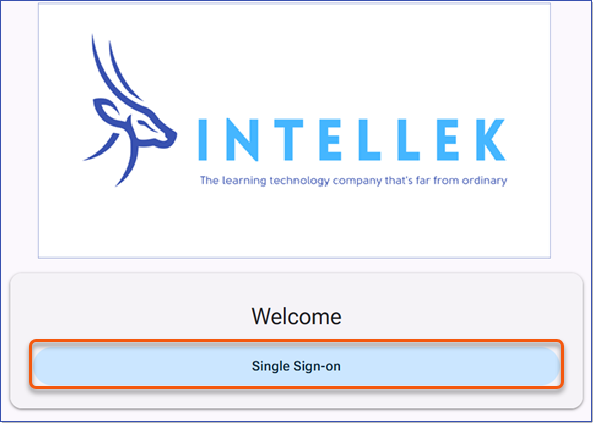
Single Sign-on Login Splash Page
 Note: The image that appears on the Single Sign-on page is uploaded through Settings > 3-dot Options > Branding.
|
